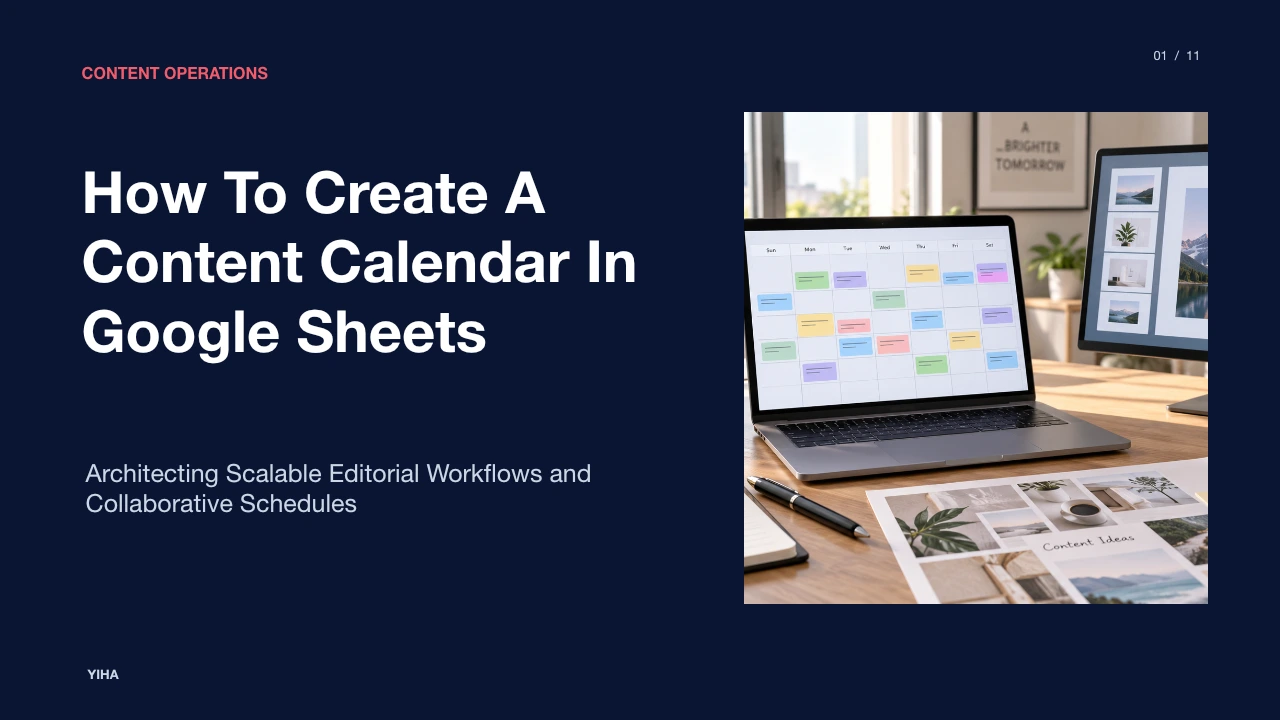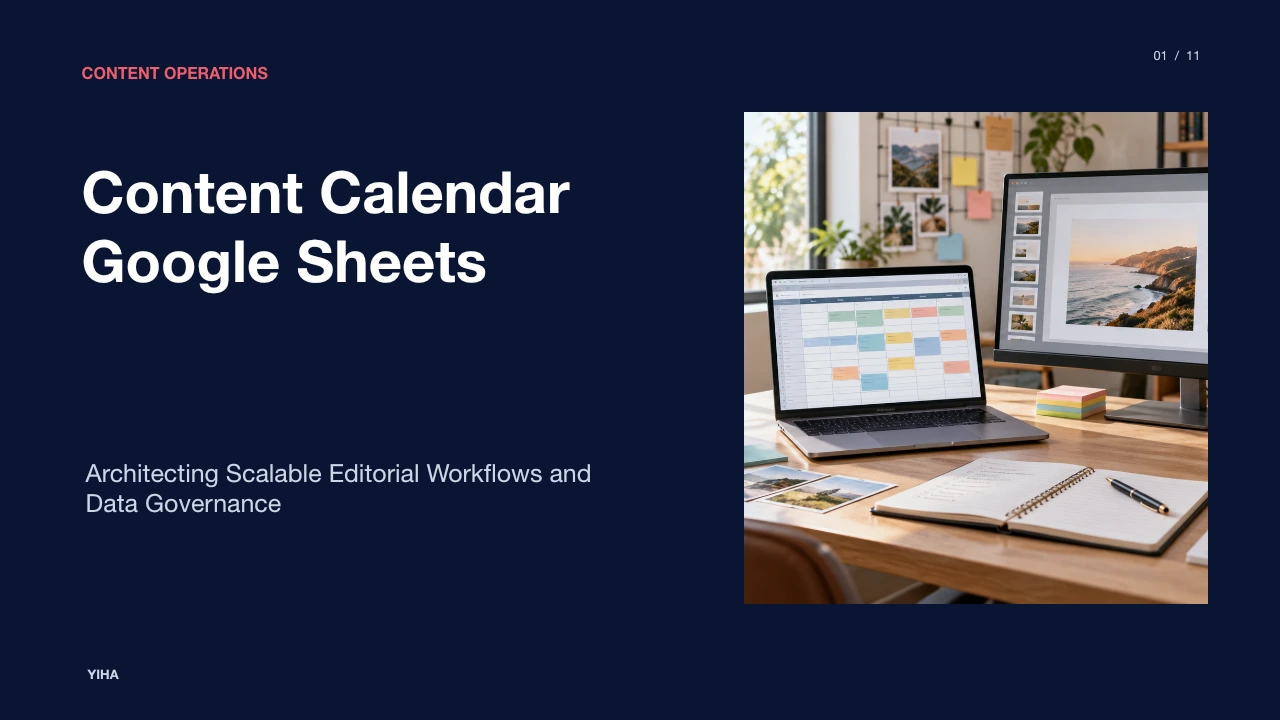
Content Calendar Google Sheets
A comprehensive operational guide to designing, structuring, and governing an editorial content calendar in Google Sheets for multi-channel publishing teams.
Free download · 4.9 MB11 editable slides · PowerPoint format
Download the editable PPTX
PPTX · 4.9 MB · 11 editable slides · Free to edit and reuse with attribution to Yiha.ai
View every slide
Use ← →, Home/End, or swipe on mobile
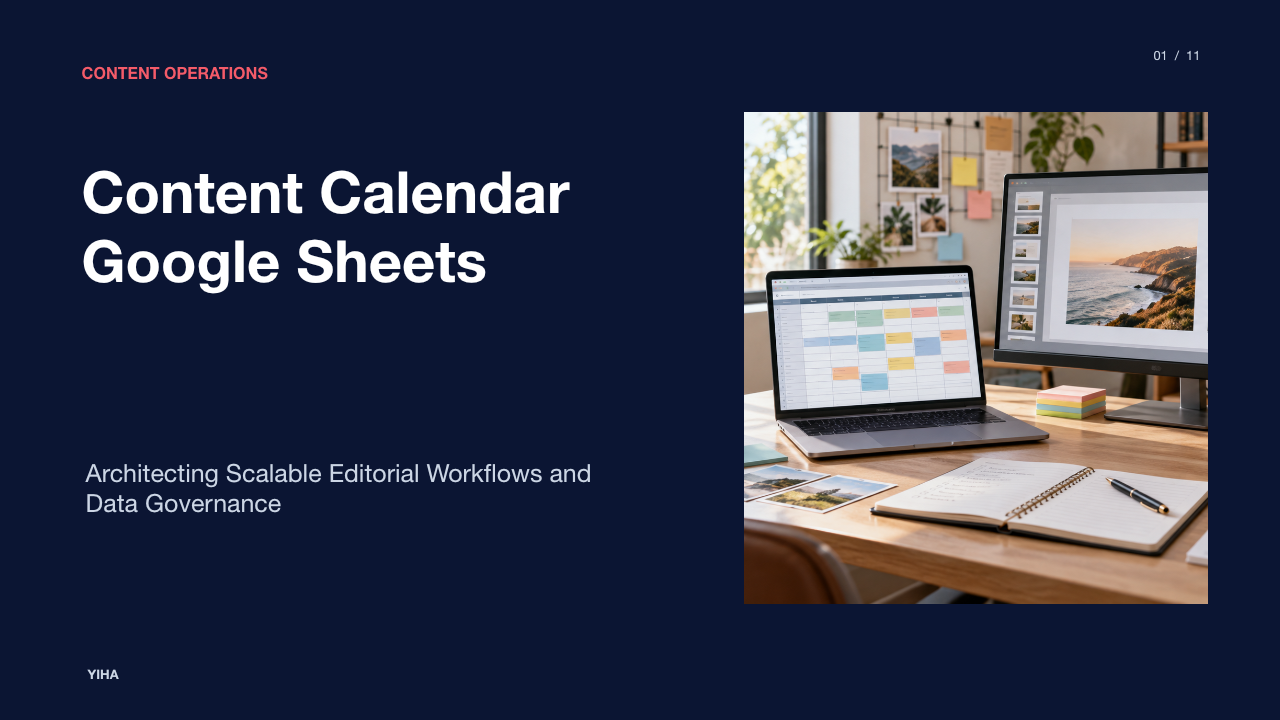
Publishing teams regularly face operational friction when production schedules, creative assets, and strategic goals are scattered across multiple tools. A structured spreadsheet provides a centralized operational foundation, giving contributors, editors, and project leads complete visibility over publishing cycles without requiring specialized software licenses. This guide details how to build, scale, and govern an editorial calendar using Google Sheets.
Why Editorial Teams Use Spreadsheets for Content Planning
Content production bottlenecks rarely stem from a lack of creative ideas. Instead, operational breakdowns occur when distribution channels, assigned authors, due dates, and draft links are trapped in fragmented communication threads and disconnected personal notes. When editorial teams lack a single shared source of operational records, deliverables slip and duplicative work inevitably emerges across desks.
Cloud spreadsheets solve this coordination breakdown by providing real-time multi-user accessibility at zero software cost. As documented in How to use Google Sheets, the cloud platform allows teams to create, format, and collaborate on shared workbooks with granular view, edit, or comment permissions. Standardized layouts like the IC-Google-Editorial-Calendar-Template show how publishing teams structure rolling months, topic outlines, and event milestones in an open grid. Rather than forcing editorial staff into rigid, proprietary project management interfaces that impose rigid assumptions, spreadsheets provide complete flexibility to modify fields as team workflows and media formats evolve.
Core Data Architecture and Field Definitions
An effective editorial calendar balances strategic context with day-to-day operational simplicity. If a calendar tracks only headlines and dates, it functions merely as a passive checklist. Conversely, overloading a sheet with dozens of obscure metadata columns creates administrative fatigue, leading contributors to bypass the system entirely.
Editorial frameworks discussed by Strategyc emphasize establishing structured tabular fields that enforce deliberate production choices. Every content row should contain an explicit publication date, distribution channel, working headline, target keyword or core message, primary author or owner, production status, asset storage link, and execution notes. Assigning explicit ownership and tracked production states ensures every contributor understands who handles drafting, copyediting, and final staging, preventing handoff delays before scheduled release windows.
For an illustrative example: an editorial team can define eight baseline columns across their primary tracker:
- Publish Date (scheduled live date)
- Channel (Blog, Newsletter, LinkedIn)
- Working Title (descriptive topic summary)
- Target Keyword or Search Intent (strategic orientation)
- Content Owner (single responsible creator)
- Production Status (standardized workflow phase)
- Draft and Asset URL (direct link to the working document)
- Notes (context, dependencies, or staging instructions)
Capturing these specific attributes creates actionable clarity without introducing metadata bloat.
Tab Modularity and Workbook Architecture
As publishing volume scales, maintaining all records inside a single unstructured sheet creates visual confusion and sluggish navigation. Editorial leads often struggle between using one continuous rolling feed or splitting schedules across multiple monthly worksheets. The most durable workbook architecture employs modular functional tabs that separate live work from historical records and taxonomies.
Practical implementations visible in resources like the Free Content Calendar Template organize workbooks into distinct functional sheets, such as monthly planning schedules, channel-specific pipelines, and idea backlogs. Recommendation: maintain a rolling pipeline tab covering an active 60-day to 90-day execution window. A separate backlog tab captures unvetted story ideas and brainstorms without cluttering active production schedules. Finally, a hidden or locked settings tab houses authoritative dropdown values and categorization tags, ensuring workbook references remain clean and stable over quarters.
Maintaining Data Integrity with Validation Controls
Collaborative spreadsheets deteriorate when individual contributors introduce uncontrolled variations in field entries. When one editor inputs "In Review" while another enters "Reviewing" or "Copy Edit", filtering systems fail and automated tracking breaks down. Maintaining rigorous data hygiene requires technical input controls.
Google Sheets prevents vocabulary drift through in-cell dropdown menus and validation rules. According to Google Docs Editors Help on dropdown lists, administrators can enforce strict validation criteria by sourcing options directly from a master cell range or entering set values, rejecting inputs that do not match the defined list. To safeguard these controls from accidental deletion, teams can use range permissions as explained in Protect, hide & edit sheets. Locking formula rows, headers, and reference lists ensures only authorized managers can modify core workbook properties.
Visual Ergonomics and Multi-User Filter Views
When multiple team members work inside the same document simultaneously, standard sheet sorting can disrupt concurrent workflows. An editor sorting by deadline will alter the view for a writer updating asset URLs, creating confusion and accidental data overwrites.
Teams can avoid this friction by configuring individualized filter views. As outlined in the guide to Sort & filter your data, filter views allow users to filter and sort data without changing the visible display for other collaborators. A writer can activate a personalized view showing only their assigned pieces, while an editor views items awaiting review. Combining filter views with automated styling rules detailed in Use conditional formatting rules enables immediate visual parsing, highlighting production stages like "Blocked" or "Drafting" with clear color fills.
Dynamic Formulas and Production Milestone Tracking
Static spreadsheets require constant manual updates to remain accurate. Incorporating dynamic formulas transforms a calendar into an automated tracking engine that calculates deadlines, monitors lead times, and highlights bottlenecks without human intervention.
Using the TODAY function, editorial boards can calculate active delivery intervals by comparing the current date against scheduled publishing deadlines. Combining date subtractions with the IF function allows cells to automatically return alerts like "Past Due" or "Due This Week". Furthermore, team managers can deploy the COUNTIF function to summarize pipeline volumes, measuring exactly how many deliverables are currently in draft, editing, or scheduled stages. For an illustrative example: an editorial coordinator tracking 20 monthly articles can use =COUNTIF(F2:F21, "Draft") to instantly report current production volume to team stakeholders.
Multi-Channel Coordination and Strategic Categorization
Modern publishing strategies demand coordinating narratives across multiple formats, such as long-form blog articles, newsletter broadcasts, and social platforms. Without deliberate categorization, cross-channel campaigns become fragmented, leading to disjointed release dates and wasted promotional reach.
As examined in editorial software reviews by XDA Developers, successful multi-channel publishing requires clear links between core content topics, specific distribution channels, and execution formats. For an illustrative example: a long-form technical article planned in the calendar serves as the parent asset, while corresponding LinkedIn summary posts and email newsletters are scheduled as dependent promotional records. In addition, classifying content as either evergreen foundational material or time-sensitive event launches helps managers maintain a steady baseline of compounding assets alongside seasonal promotions.
Technical Limits and Tool Boundary Decisions
While Google Sheets provides extensive flexibility, organizations must recognize when a spreadsheet reaches its practical limits. Spreadsheets lack native direct publishing connectors to web content management systems, do not generate live visual social post previews, and require manual notifications unless augmented with third-party automation tools.
Google Drive imposes technical boundaries that organizations must plan around. As specified in Google Drive Help file limits, Google Sheets supports up to 20 million cells or 100 megabytes per file, with cell character counts capped at 50,000 characters during conversions. Beyond computational limits, large teams with complex relational dependencies or multi-tier stakeholder approvals may eventually outgrow tabular structures and require specialized editorial workflow engines.
Editorial Operating Cadence and Sheet Hygiene
Even the most carefully configured spreadsheet fails if team members do not maintain consistent operational habits. The primary cause of calendar abandonment is not system limitations, but process decay where dates, links, and status tags are left unmaintained.
Editorial hygiene best practices highlighted by EvergreenFeed demonstrate that publishing consistency depends on structured team rituals. Editorial teams should hold a recurring weekly production review to assess upcoming deadlines, resolve blocked items, and prune unvetted proposals. Following content publication, owners must log live canonical URLs and transition row states to "Published". At the conclusion of each quarter, completed rows should be transferred to a dedicated archive sheet, keeping the active production tab fast, legible, and focused on current initiatives.
Research sources
- IC-Google-Editorial-Calendar-Template - Google 表格 · docs.google.com
- How to use Google Sheets - Computer - Google Docs Editors Help · support.google.com
- Free Content Calendar Template - Google 表格 · docs.google.com
- news · contentmarketinginstitute.com
- How to Build a Content Calendar Template in Google Sheets Your Team Will Use | Strategyc · www.strategyc.io
- GOOGLEFINANCE - Google Docs Editors Help · support.google.com
- Create an in-cell dropdown list - Computer - Google Docs Editors Help · support.google.com
- Protect, hide & edit sheets - Computer - Google Docs Editors Help · support.google.com
- Sort & filter your data - Computer - Google Docs Editors Help · support.google.com
- Use conditional formatting rules in Google Sheets - Computer - Google Docs Editors Help · support.google.com
- Add or move columns & cells - Computer - Google Docs Editors Help · support.google.com
- TODAY - Google Docs Editors Help · support.google.com
- COUNTIF - Google Docs Editors Help · support.google.com
- IF function - Google Docs Editors Help · support.google.com
- I rebuilt my entire content calendar in Airtable's free plan — and it's better than most paid PM tools · www.xda-developers.com
- Files you can store in Google Drive - Google Drive Help · support.google.com
- Google Sheets Content Calendar Template: A 2026 Guide - EvergreenFeed Blog · www.evergreenfeed.com