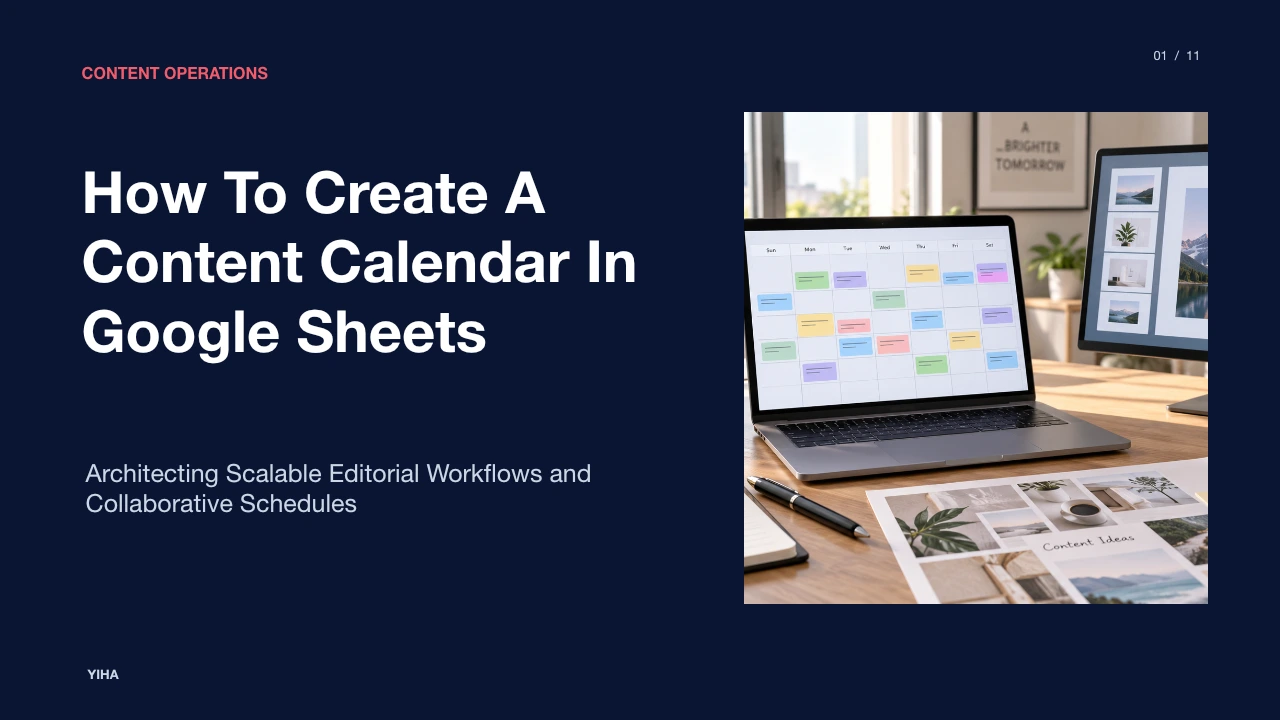
How To Create A Content Calendar In Google Sheets
A practical guide to building an editorial calendar in Google Sheets. Learn how to structure row-per-asset databases, implement data validation, configure status alerts, and maintain team workflows.
Free download · 4.9 MB11 editable slides · PowerPoint format
Download the editable PPTX
PPTX · 4.9 MB · 11 editable slides · Free to edit and reuse with attribution to Yiha.ai
View every slide
Use ← →, Home/End, or swipe on mobile
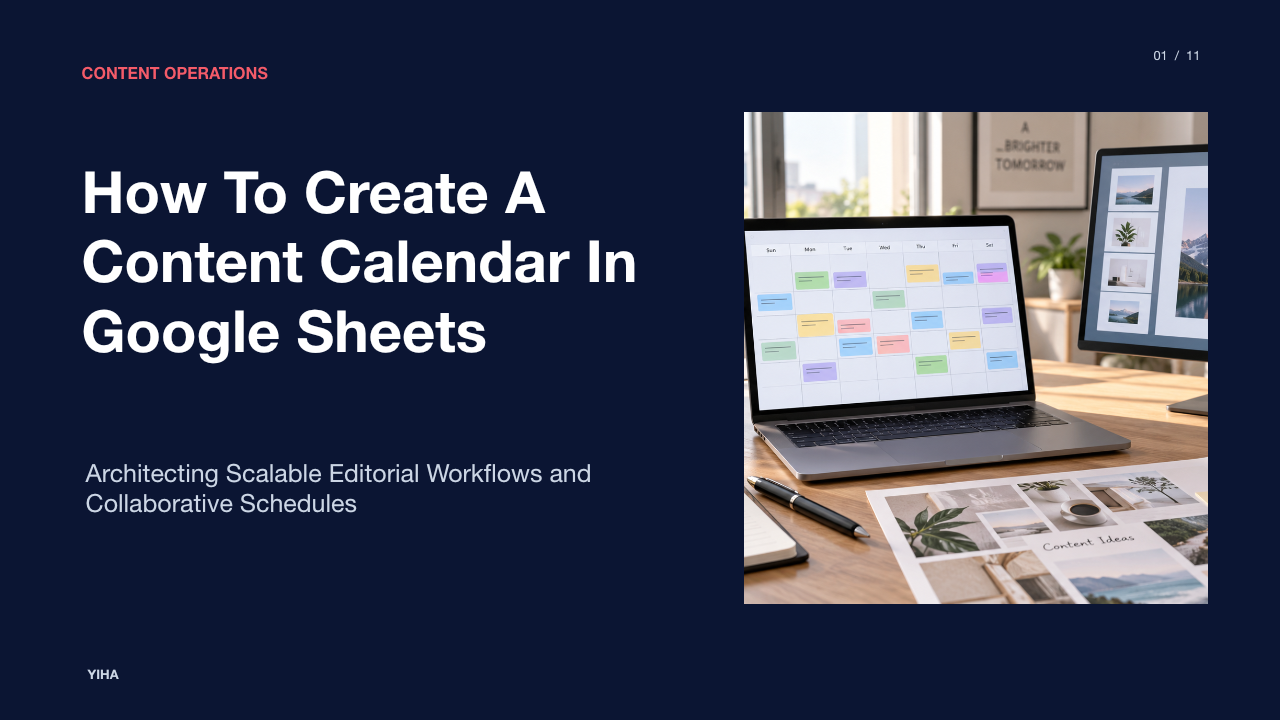
Publishing content across multiple channels without a central planning system often results in missed deadlines, duplicate topics, and disorganization. While specialized project management software exists, a structured spreadsheet provides a flexible, accessible foundation for coordinating editorial work without added software licensing costs. Building an effective system requires more than filling out dates and post titles. A reliable calendar functions as a flat database where every row tracks an individual asset through research, drafting, review, and distribution.
By establishing deliberate schemas, applying native data validation rules, configuring visual status cues, and isolating collaborator views, editorial teams can maintain operational discipline. This guide outlines how to build, protect, and operate an editorial calendar directly inside Google Sheets.
Strategic Foundation: The Role of Structured Editorial Calendars
Ad-hoc content creation relies on informal communication and short-term memory, which quickly breaks down as teams expand or publishing channels multiply. When writers, editors, and channel managers operate without a shared plan, scheduling conflicts emerge and strategic alignment across marketing themes disappears. A structured editorial calendar centralizes planning so contributors understand upcoming deadlines, assigned responsibilities, and distribution timing in advance.
According to Strategyc's guide on content calendar templates, an editorial spreadsheet organizes publishing across channels, removing guesswork and enforcing consistency. Rather than serving merely as a retroactive record of published pieces, the calendar works as an active operations schedule. It compels teams to identify target keywords, target audiences, and production stages before production begins.
Centralizing this workflow inside Google Drive provides persistent access across internal team members and external freelancers without per-seat software costs. As outlined in Freak In The Sheets' editorial calendar overview, treating each row as a dedicated asset establishes accountability by clearly distinguishing who owns the draft and who holds approval authority.
Architectural Design: Tabular Databases Versus Visual Grids
When teams first set out to build a content calendar, they frequently design it as a traditional wall-calendar grid with squares for each day of the month. While visually intuitive, traditional calendar grids introduce structural limitations in spreadsheets. Boxes cannot easily store detailed metadata, formula lookups become impractical, and filtering by author or platform requires manual scanning.
Professional editorial systems rely on a flat tabular database architecture where every row represents exactly one discrete content asset. As explained by Julius AI's content calendar guide, keeping one piece of content per row enables comprehensive sorting, counting, and filtering across dates, channels, and statuses. If a long-form article is repurposed into a promotional email or social thread, each derivative asset receives its own dedicated row linked to the primary piece.
Tabular architecture decouples data entry from presentation. Once records are logged in standard rows and columns, functions such as QUERY and FILTER can dynamically compile monthly agendas, author-specific task lists, or channel-specific views without modifying the underlying dataset.
Schema Definition: Core Metadata and Editorial Attributes
A content calendar succeeds or fails based on the quality of its schema. If a spreadsheet collects too little information, it functions only as a basic task list. If it demands dozens of irrelevant fields, contributors stop updating it within weeks. A balanced schema separates operational fields required for execution from strategic attributes required for performance tracking.
As detailed in Strategyc's content calendar framework and Julius AI's column recommendations, an operational calendar requires a core set of operational columns:
- Asset ID and Title: A unique identifier alongside a working headline.
- Publish Date and Due Date: Explicit separation between when an initial draft is due to an editor and when the final asset goes live.
- Channel and Content Type: The publishing destination (for example, Blog, Newsletter, LinkedIn) and format.
- Owner and Reviewer: Explicit individual assignment for who writes the draft and who approves it.
- Production Status: Current pipeline state (for example, Idea, In Drafting, Under Review, Scheduled, Published).
- Asset Link: Direct hyperlink to the working document, design file, or CMS preview.
Strategic columns can be added alongside these operational fields, such as primary target keywords, intended buyer funnel stages, and campaign tags. Taja.AI's content calendar strategy notes that planning themes and recording target search terms ensures the schedule functions as a strategic production tracker rather than an isolated list of dates.
Data Standardization: Input Rules and Controlled Dropdowns
Freeform text fields inevitably introduce human error. When multiple people type channel names or status values manually, variations like "Linked-In", "linkedin", and "LI" prevent accurate filtering and reporting. Maintaining calendar integrity requires technical standardization through Google Sheets data validation.
According to Google's official documentation on creating in-cell dropdown lists, editors can apply strict validation criteria to columns. By configuring dropdown menus for statuses, channels, and content types, users choose from predefined options rather than entering unstructured text. Enabling the option to reject invalid inputs prevents accidental typographical errors and ensures data uniformity.
Similarly, enforcing date criteria on Due Date and Publish Date columns guarantees that entries follow valid date formats, preventing text strings from breaking date-based sorting rules. As demonstrated in Freak In The Sheets' step-by-step setup, rigorous dropdown menus simplify ongoing data entry and enable reliable formula calculations across the workspace.
Visual Workflow Rules: Conditional Formatting and Status Alerts
A text-heavy spreadsheet can become difficult to scan as rows accumulate. Implementing automated visual formatting highlights workflow stages and surfaces bottlenecks before deadlines are missed.
Using native Google Sheets conditional formatting rules, teams can automatically color-code cells based on specific text criteria. For example, status cells can turn green when marked "Published", blue when "Scheduled", and yellow when "In Review". This formatting transforms a dense table into an operational status board that team leaders can evaluate at a glance.
Custom formula rules provide proactive deadline tracking. By referencing date fields against the dynamic =TODAY() function, a rule can highlight rows in orange when a draft is due within 72 hours and its status has not reached "Approved". Rows where the due date has passed can automatically flag in red. Strategyc's workflow recommendations emphasize that date-based visual rules catch deadline creep early, providing managers sufficient notice to resolve bottlenecks or reschedule publication slots.
Multi-Team Visibility: Implementing Filter Views and Slicers
In collaborative environments, multiple contributors frequently access the calendar simultaneously. When a writer applies a standard sheet filter to view only their assigned articles, that filter alters the view for everyone else in the document, disrupting concurrent work.
To prevent this friction, teams should use Google Sheets Filter Views. As documented in Google's sort and filter guide, a filter view allows an individual user to sort and filter rows without altering what other collaborators see. Team administrators can build and save named filter views for specific team members (such as "Writer: Sarah") or specific production states (such as "Ready for Editorial Review").
Collaborators can also use interactive slicers or duplicate saved filter view links to isolate their daily tasks. As highlighted in EvergreenFeed's Google Sheets guide, saved filter views provide personalized dashboards while maintaining a single, unified database sheet. This structure eliminates the need to duplicate data across disconnected tabs.
Governance and Integrity: Range Protection and Version Tracking
As spreadsheets expand to accommodate cross-functional teams and external contractors, governance safeguards are necessary to prevent accidental deletions and formula corruption. An unprotected sheet allows any user with edit access to inadvertently overwrite calculations, validation lists, or historical logs.
Google Sheets provides granular security tools through range protection. According to official documentation on protecting and editing sheets, sheet owners can restrict specific cells or entire sheets so that only designated administrators can edit them. In an editorial calendar, formula columns, metadata validation lists, and header rows should remain protected, while writers and reviewers retain editing rights only for their operational input fields.
When unexpected modifications occur, administrators can consult revision tracking. As detailed in Google's version history guide, Google Sheets records a detailed timeline of revisions, displaying who made changes and what was modified. File owners can assign named versions to key publishing milestones or restore earlier versions if a collaborator corrupts the document layout.
Tradeoffs and Scaling: Identifying Spreadsheet Limitations
While Google Sheets provides an accessible, cost-effective tool for editorial planning, organizations must recognize its technical ceilings. Spreadsheets are built primarily for calculation and structured tabular storage, not native content asset management or automated social media publishing.
Strategyc's editorial analysis notes that spreadsheets operate efficiently for solo creators and smaller teams, but operational strain appears when managing high volumes across several contributors. Large teams running dozens of simultaneous edits may encounter performance lag, cell-locking conflicts, and cluttered layouts. Furthermore, spreadsheets cannot store high-resolution video files natively or publish directly to content management systems without complex custom scripts.
As outlined in Freak In The Sheets' template guide, moving content from a spreadsheet to publishing platforms requires manual copying and pasting unless integrated via external application programming interfaces (APIs). When multi-channel publishing demands complex digital asset management, multi-stage approval hierarchies, or automated social distribution, organizations often use Google Sheets for initial strategy while transitioning execution tasks into specialized workflow software.
Operational Execution: Workflow Cadence and Calendar Maintenance
A content calendar functions only as effectively as the human operating rhythm that supports it. Without consistent maintenance and scheduled review meetings, data becomes obsolete, overdue dates go uncorrected, and the sheet falls out of use.
Teams should establish a regular calendar rhythm across three recurring horizons:
- Weekly Operational Check-ins (Recommendation: 20–30 minutes): Editorial teams meet to review the upcoming seven-day publishing queue, confirm drafts in the review stage, and reassign tasks for flagged bottlenecks.
- Monthly or Quarterly Strategy Planning: Following planning principles discussed by Taja.AI, marketing leadership outlines overarching campaign themes 4 to 6 weeks in advance, ensuring writers have adequate lead time before draft deadlines arrive.
- Quarterly Archiving and Cleanliness Audits: Completed assets should be systematically archived into a historical reference tab or verified with their permanent live URLs, turning the active calendar into a searchable repository of published work.
By combining disciplined database architecture with rigorous weekly reviews, teams ensure their Google Sheets editorial calendar remains an accurate, reliable operational asset.
Research sources
- news · contentmarketinginstitute.com
- How to Build a Content Calendar Template in Google Sheets Your Team Will Use | Strategyc · www.strategyc.io
- Editorial Calendar Template for Google Sheets | FITS · freakinthesheets.net
- GOOGLEFINANCE - Google Docs Editors Help · support.google.com
- How to Create a Content Calendar in Google Sheets (+Template!) | Julius AI · julius.ai
- How to Create a Content Calendar That Actually Works - Taja.AI · www.taja.ai
- Create an in-cell dropdown list - Computer - Google Docs Editors Help · support.google.com
- Google Sheets Content Calendar Template: A 2026 Guide - EvergreenFeed Blog · www.evergreenfeed.com
- Build a Content Calendar in Google Sheets: Guide | FITS · freakinthesheets.net
- Use conditional formatting rules in Google Sheets - Computer - Google Docs Editors Help · support.google.com
- IMPORTHTML - Google Docs Editors Help · support.google.com
- Sort & filter your data - Computer - Google Docs Editors Help · support.google.com
- Protect, hide & edit sheets - Computer - Google Docs Editors Help · support.google.com
- Find what's changed in a file - Computer - Google Docs Editors Help · support.google.com