Trello Content Calendar
A comprehensive guide to designing and running a visual content calendar in Trello, covering board architecture, card anatomy, automated Butler rules, and governance.
Free download · 4.9 MB11 editable slides · PowerPoint format
Download the editable PPTX
PPTX · 4.9 MB · 11 editable slides · Free to edit and reuse with attribution to Yiha.ai
View every slide
Use ← →, Home/End, or swipe on mobile
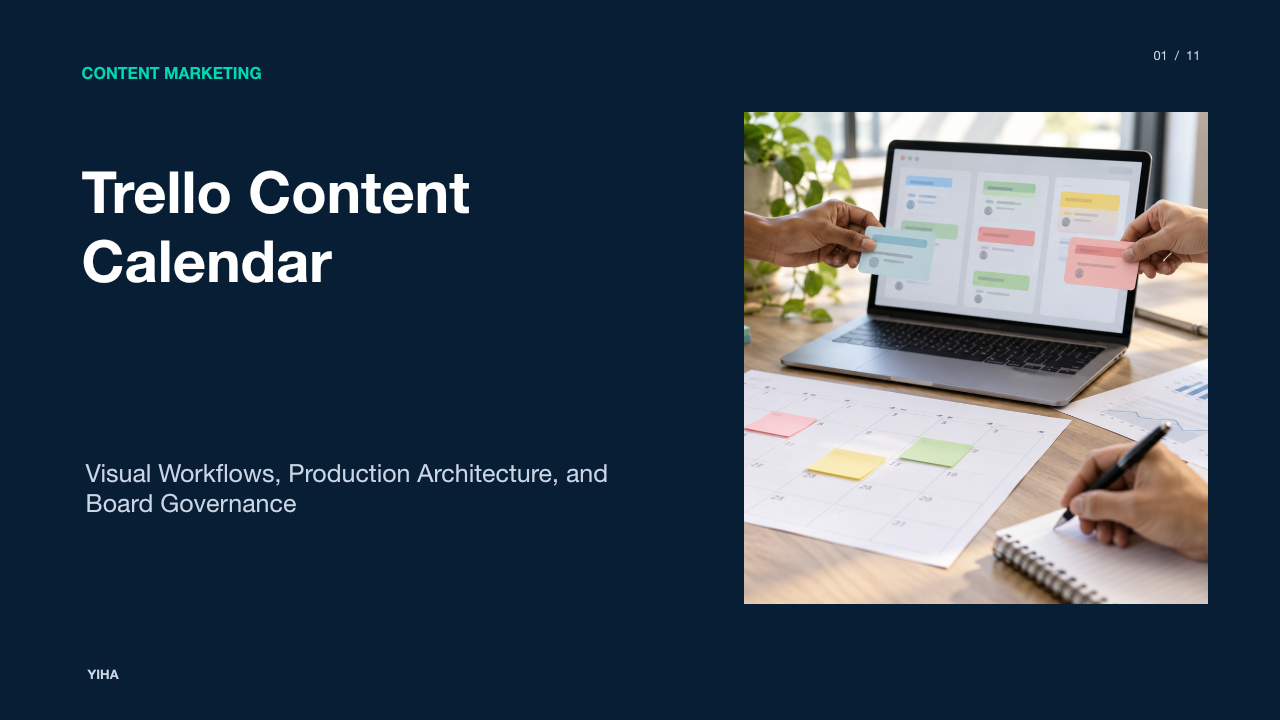
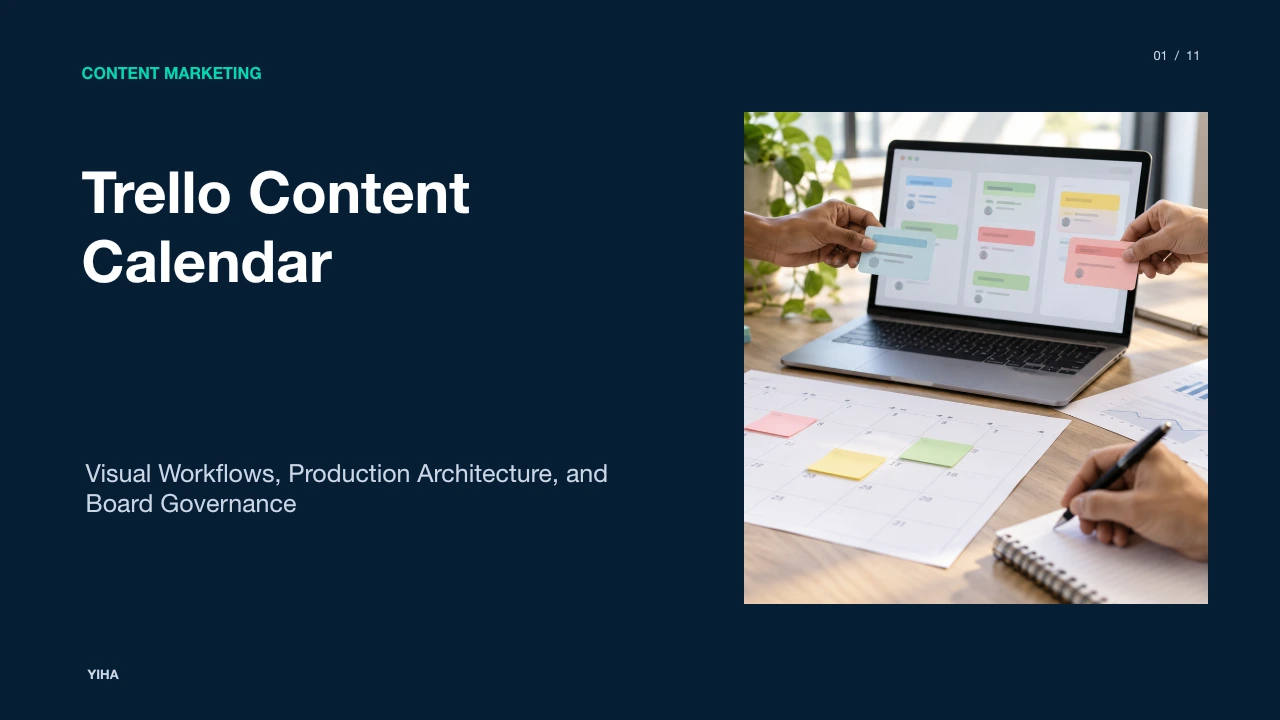
Managing an active publishing program requires coordinating multiple contributors, shifting deadlines, and varying content formats. Without a centralized system, editorial operations quickly run into confusion over asset status, missed review handoffs, and stalled drafts. Converting an editorial schedule into a Kanban-based visual board provides full visibility into the content pipeline, turning publishing plans into an actionable production process.
Why Traditional Editorial Schedules Break Down
Many marketing teams initially rely on static spreadsheets to plan their editorial calendars. While grid layouts such as an Editorial Calendar Planner: Free Excel Template for Efficient Content Scheduling / xlstemplate.com provide straightforward columns for topics, target publication dates, and assignees, they function primarily as flat data storage. Spreadsheets do not dynamically reflect real-time production movements. When a draft encounters revisions or delays, team members must manually edit multiple rows and date cells, leading to data decay where the sheet falls out of alignment with reality.
Communication breakdowns frequently follow. In spreadsheet workflows, discussion of draft revisions, feedback, and creative assets is separated into external chat threads, email chains, and shared documents. As observed in What is an editorial calendar? My guide to building one [examples + templates], lack of clear ownership and invisible handoff points cause content to stall because contributors do not know who holds the active deliverable. Conversely, visual workflow management on tools like Kanban boards organizes work into explicit operational phases such as To-Do, In Progress, and Published. According to Editorial calendar template | Jira, mapping tasks across visual stages reduces the need for constant status check-ins and reveals workflow bottlenecks early.
Core Board Architecture and Production Stages
To construct an effective Trello content calendar, teams arrange lists sequentially from left to right to map the entire lifecycle of a publication asset. According to the internal workflow documented in How to create your perfect editorial calendar with Trello - Inside Atlassian, editorial boards function best when cards begin in an "Incoming" pitch list and move across distinct development stages until reaching the completed "Published" column.
When designing board architecture, process simplicity is essential. The setup guide in How to Set Up a Trello Content Calendar (Easy Tutorial) suggests a foundational five-list structure: Ideas, Drafting, In Review, Scheduled, and Published. Each content piece receives exactly one card that advances horizontally. At the same time, analysis in Trello Content Calendar: Workflows and Automations (2026) recommends keeping board stages between 5 and 10 lists. Having fewer than 5 lists creates blind spots where drafts stall without clear status, while exceeding 10 lists introduces friction that slows down daily board maintenance.
Card Anatomy as the Single Source of Production Truth
Every card on a Trello board must serve as the authoritative record for a specific asset rather than a basic reminder note. Storing creative briefs, target keywords, deliverables, and comments directly inside the card eliminates fragmented email threads. Practical guidelines from Trello Content Calendar: Workflows and Automations (2026) emphasize using the card description to document the core brief, including target audience personas, headline variations, reference research links, and target search terms.
To ensure quality control at every phase, teams use structured subtask checklists. Predefined checklists for drafting requirements, technical copyediting, graphic asset preparation, and final search engine optimization ensure that contributors complete all necessary steps before moving a card forward. For data points that require rigorous tracking, native card custom fields provide structured entries. As documented in Trello Custom Fields Guide: Complete Tutorial & Examples 2025 - Blue Cat Reports and Trello Custom Fields Documentation: A Practical Setup Guide, custom fields allow teams to input numeric word counts, review dates, and drop-down production statuses directly onto cards, making critical details visible right on the card front.
Taxonomy Design with Labels and Custom Fields
Maintaining a clean content board requires a thoughtful taxonomy system. Trello labels provide color-coded visual markers on card fronts that allow team members to scan the board quickly. According to How To Set Up an Editorial Calendar, marketing teams can use labels to denote content pillars, target audiences, content formats, and distribution channels. The team breakdown in How to create your perfect editorial calendar with Trello - Inside Atlassian notes that assigning up to three labels per card helps editors confirm that their monthly output maintains a balanced mix of topics and themes.
However, teams must be careful not to create too many visual tags. Guidance from Trello Content Calendar: Workflows and Automations (2026) recommends keeping the total label count under 15 tags. When boards accumulate dozens of colored tags, the visual cues become confusing visual noise. For tracking structured values such as target keywords, assigned copyeditors, or word count goals, teams should use custom fields instead of multiplying label colors.
Temporal Planning with Calendar and Timeline Views
While Kanban columns provide visibility into production progress, marketing managers also need time-based visibility to balance publishing frequencies and prevent scheduling conflicts. Activating the Calendar view plots all cards with assigned due dates across an interactive monthly or weekly grid. According to How to Use the Trello Calendar Power-Up for Time Management - Online Tool Guides, toggling into calendar mode enables managers to spot scheduling pileups and gaps early, ensuring a predictable publishing pace.
As explained in Trello Content Calendar: Workflows and Automations (2026), the standard Calendar Power-Up is available on Trello's free plan, providing essential visibility into upcoming deliverables. For larger organizations using paid workspace plans, Timeline view displays production spans across dates, helping managers coordinate parallel editorial streams. As noted in personal testing comparisons in I rebuilt my entire content calendar in Airtable's free plan — and it's better than most paid PM tools, switching smoothly between status columns and date layouts allows creators to isolate active production tasks while keeping upcoming deadlines clearly in sight.
Automating Editorial Tasks with Butler Rules
Repetitive administrative work can slow down an editorial workflow. Trello's built-in automation engine, Butler, executes rules based on predefined board triggers. As explained in the founder overview in 5 easy Butler rules you need to transform your automation game - Inside Atlassian, Butler allows teams to build no-code rules that complete routine tasks, such as automatically checking off due dates when cards reach a "Done" or "Published" list.
In a content production pipeline, Butler rules can enforce quality standards automatically. Insights from Trello Content Calendar: Workflows and Automations (2026) highlight that Butler rules can generate specific checklists when a card moves into a new list, such as attaching an SEO review checklist upon entry into "In Review." Furthermore, as demonstrated in Trello Editorial Calendar: How To Set Up A Simple Workflow | RankYak, Butler rules can also move cards forward when all checklist items are completed and trigger automatic notifications 48 hours prior to an impending due date, helping writers and editors stay on schedule without manual reminders.
Connecting Cloud Assets and External Marketing Stacks
Trello boards do not operate in isolation; they connect to broader content creation and communication stacks through Power-Ups and integrations. As highlighted in How To Set Up an Editorial Calendar, marketing teams can attach shared assets directly to cards using integrations like Google Drive, allowing writers, designers, and editors to access shared briefs and draft documents from a single location.
To prevent confusion and board clutter, teams should avoid adding unnecessary integrations. Editorial guidelines in Trello Content Calendar: Workflows and Automations (2026) recommend focusing initially on core connections, such as Google Drive for document storage, Slack for team communication alerts, and calendar synchronization. Because Trello does not include built-in direct publishing connections to content management systems like WordPress or Ghost, production teams can either use automation tools like Zapier or include publishing steps directly within their pre-launch checklists.
Tool Capabilities and Multi-Board Governance Trade-Offs
While Trello offers an accessible and intuitive system for managing content pipelines, teams must understand its operational boundaries. As analyzed in I rebuilt my entire content calendar in Airtable's free plan — and it's better than most paid PM tools, Trello's card-and-list model focuses on linear pipeline stages rather than complex relational databases. Relational database tools, as discussed in How to use Airtable for content calendar - The Tech Edvocate, allow users to connect separate tables for target platforms, writers, and topic clusters, whereas Trello isolates card data within individual boards.
Scale is another key consideration. According to Trello Content Calendar: Workflows and Automations (2026), a Trello board remains smooth with up to 500 total cards, but its practical working limit is approximately 50 active content assets at one time. Once an editorial board exceeds this volume, scanning and filtering become cumbersome. Furthermore, because Trello lacks cross-board portfolio views without enterprise tiers, organizations running distinct boards for multiple clients or formats must establish consistent board structures to maintain clarity across projects.
Operational Disciplines for Long-Term Board Maintenance
Even a well-configured Trello board will deteriorate if the team does not maintain consistent operational habits. A common failure in Kanban systems is bottle-necking caused by unconstrained work-in-progress. As outlined in How to Set Up a Trello Content Calendar (Easy Tutorial), moving cards consistently and updating overdue dates to realistic targets keeps the calendar view accurate and prevents silent schedule drift.
Regular board maintenance is vital to prevent visual clutter. Recommendations in Trello Content Calendar: Workflows and Automations (2026) and Content Calendar Trello: How to Create Your First Editorial Calendar in 7 highlight the importance of monthly archiving routines to move published cards out of active view. Teams that establish clear review steps, maintain weekly coordination check-ins, and keep active card volumes manageable ensure that their Trello board remains an accurate, reliable command center for ongoing content production.
Research sources
- Editorial calendar template | Jira · www.atlassian.com
- Editorial Calendar Planner: Free Excel Template for Efficient Content Scheduling / xlstemplate.com · xlstemplate.com
- What is an editorial calendar? My guide to building one [examples + templates] · blog.hubspot.com
- How to create your perfect editorial calendar with Trello - Inside Atlassian · www.atlassian.com
- Trello Content Calendar: Workflows and Automations (2026) · draft.dev
- How to Set Up a Trello Content Calendar (Easy Tutorial) · tasknerve.com
- Trello Custom Fields Guide: Complete Tutorial & Examples 2025 - Blue Cat Reports · www.bluecatreports.com
- Trello Custom Fields Documentation: A Practical Setup Guide · ones.com
- How To Set Up an Editorial Calendar · trello.com
- I rebuilt my entire content calendar in Airtable's free plan — and it's better than most paid PM tools · www.xda-developers.com
- How to Use the Trello Calendar Power-Up for Time Management - Online Tool Guides · onlinetoolguides.com
- 5 easy Butler rules you need to transform your automation game - Inside Atlassian · www.atlassian.com
- Trello Editorial Calendar: How To Set Up A Simple Workflow | RankYak · rankyak.com
- How to use Airtable for content calendar - The Tech Edvocate · www.thetechedvocate.org
- Content Calendar Trello: How to Create Your First Editorial Calendar in 7 · writerslifeforyou.com