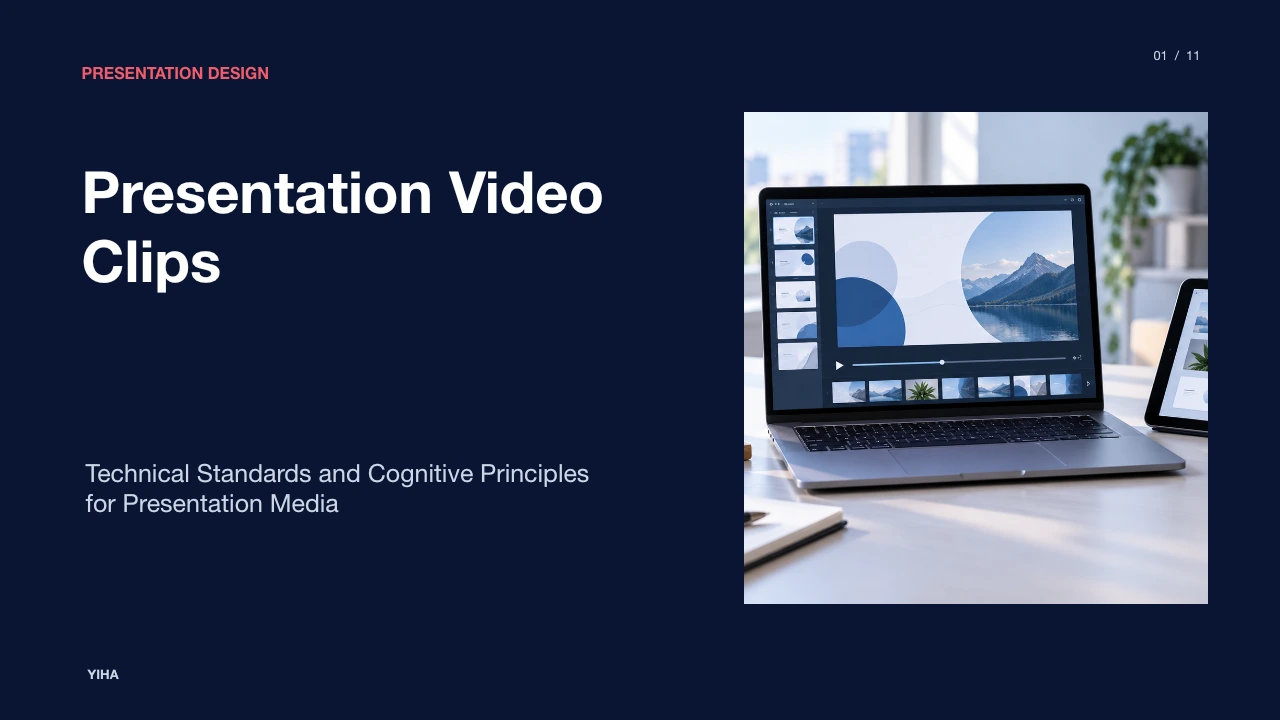
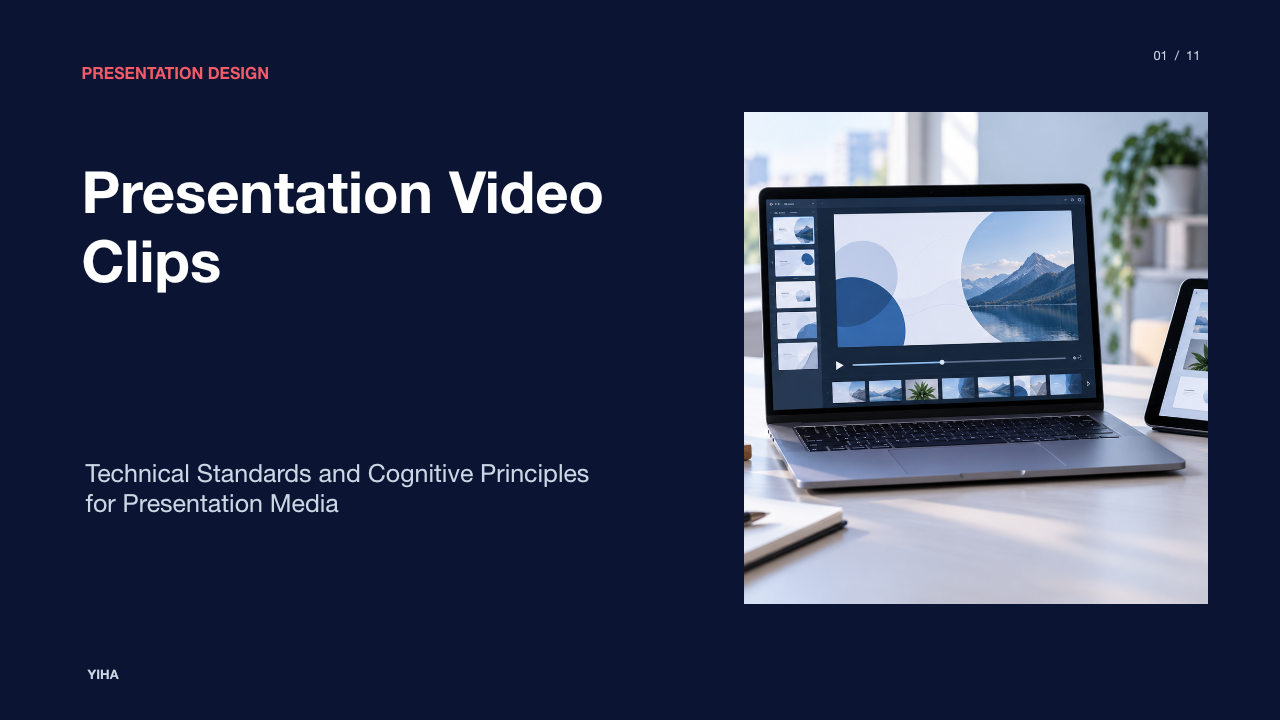
Presentation Video Clips
A technical guide to integrating video clips into slide presentations, covering multimedia cognitive load, H.264 video encoding, WCAG caption accessibility, and pre-flight validation.
Free download · 4.9 MB11 editable slides · PowerPoint format
Download the editable PPTX
PPTX · 4.9 MB · 11 editable slides · Free to edit and reuse with attribution to Yiha.ai
View every slide
Use ← →, Home/End, or swipe on mobile
Slide presentations have expanded beyond static bullet points into rich multimedia formats. Integrating video clips into slide decks allows presenters to demonstrate complex procedures, build trust through spoken narrative, and support asynchronous viewing. However, incorporating motion and audio introduces cognitive demands and technical risks. If video clips are chosen poorly or encoded incorrectly, they create distraction, cause system freezes, or exclude viewers. This guide examines how to select, encode, and deliver presentation video clips grounded in cognitive principles, technical encoding standards, and structured delivery workflows.
The Evolution of Video Within Slide Presentations
Early digital presentations relied almost entirely on static slides composed of text bullets, basic tables, and still photography. Presenting complex workflows in that environment required speakers to narrate sequential steps manually, while viewers had to interpret static diagrams. As outlined by Vmaker's guide to video presentations, video presentations combine slides, narration, animation, and audiovisual footage to communicate concepts in an accessible manner, allowing viewers to consume material on their own schedule rather than requiring synchronized meetings.
Modern workplaces increasingly rely on asynchronous presentation artifacts. As discussed in Visme's analysis of interactive video presentations, passive slide decks leave the presenter uncertain about whether a recipient actually reviewed critical points. Incorporating video converts static documents into self-paced onboarding walkthroughs, product demonstrations, and pitch assets that can be distributed as links. Furthermore, tools highlighted by SlidesAI on making video presentations demonstrate that platforms such as Microsoft PowerPoint and OBS Studio enable presenters to capture screen movement, export structured video files, and adapt presentations across remote team settings without specialized studio gear.
Cognitive Architecture and Dual-Channel Processing
Human cognitive architecture processes audiovisual information across separate visual and verbal channels. When a slide deck combines static on-screen text with an active video containing dialogue, both elements compete for the viewer's verbal and visual attention. As noted in SlidesAI's presentation overview, when visual movement and vocal narration align properly, viewers follow explanations more easily because screen action reinforces spoken points rather than splitting mental focus.
Dual-channel processing requires presenters to respect human working memory limits. Presenter analysis indicates that learners struggle when forced to read dense bullet points while simultaneously watching a video clip with independent narration. As documented in Visme's multimedia research review, multimedia learning researcher Richard E. Mayer established that learners comprehend material more effectively when extraneous information is removed. To avoid overloading working memory, presentation video clips should let one channel take the lead: visual motion on screen should illustrate physical steps while the auditory channel provides narration, keeping the on-slide text minimal.
The Coherence Principle and Filtering Extraneous Load
Presenters often add video clips purely for visual flair, incorporating decorative motion graphics or ambient corporate footage that lacks instructional value. According to Clipchamp's ultimate guide to video presentations, while media libraries provide access to stock video clips, backgrounds, and animations, creators must prioritize key messages and trim unnecessary frames so footage directly serves the presentation's primary objective.
Extraneous footage introduces seductive details that draw attention away from the core concept. Stock video directories like Pexels video presentation archives and Pexels presentation intro assets contain tens of thousands of stock files, but uncurated decorative clips increase cognitive load. Mayer's coherence principle warns that extraneous elements degrade learning. In our analysis, presenters should apply a strict weeding rule: every video clip must either demonstrate a physical action, provide direct evidence, or demonstrate software functionality. If a clip serves only as visual filler, it should be removed.
Empirical Evidence on Recall and Knowledge Transfer
Empirical research into multimedia instruction demonstrates that active viewer participation and segmented formats yield noticeable advantages over uninterrupted passive video consumption. As explained in Visme's interactive video guide, traditional passive video runs in a single direction, requiring visual attention while offering limited cognitive reciprocity. Viewers can pause or rewind, but without active prompts, their engagement tends to decay. In contrast, interactive video incorporates embedded decision points, navigation menus, and knowledge checks that pause playback. Requiring the viewer to make an explicit choice or answer a question forces them to reflect on the content before proceeding, converting passive observation into active processing.
Short, segmented video clips prevent the cognitive fatigue and passive disengagement common in continuous presentations. According to Vmaker's presentation analysis, conventional long-form presentations frequently struggle to maintain audience attention regardless of visual polish. Replacing an unbroken presentation recording with concise, segmented clips interspersed with reflective discussion slides enables viewers to anchor key concepts progressively. Segmented demonstrations allow learners to focus on one discrete mechanism at a time, facilitating problem-solving transfer by ensuring foundational steps are comprehended before introducing subsequent procedures.
Taxonomy of Presentation Video Formats and Clip Roles
Video clips serve distinct pedagogical and operational functions within a slide deck. Presenters should categorize video assets into distinct operational types based on communication goals:
- Screen Demonstrations: Recording software interfaces, workflows, or technical processes while narrating each action. Clipchamp's video presentation guide highlights screen capture as an efficient format for step-by-step guidance.
- Talking-Head Recordings: A presenter's webcam footage presented alone or as a picture-in-picture window. As explained by CapCut's course video format guide, talking-head video establishes presence, context, and trust, whereas screen demonstrations are necessary when viewers must track visual actions.
- Hybrid Overlays: Combining slides or software demos with a corner talking-head window. This orientation helps maintain human connection without obscuring instructional screen content.
- Interactive Branching Clips: Segmented video clips organized behind hotspots or navigation menus. As detailed in Visme's presentation walkthrough, interactive branching allows the presenter or viewer to jump directly to specific case studies or technical specifications on demand.
Video Codecs, Compression, and Container Formats
Technical playback failures during presentations frequently stem from codec incompatibilities rather than slide software errors. As documented by WiseChecker's guide to PowerPoint video codec requirements, Microsoft PowerPoint relies on the Windows Media Foundation framework, which natively guarantees H.264 video decoding across Windows 10 and Windows 11 systems. Formats using codecs like HEVC (H.265), VP9, or AV1 frequently produce black frames, playback errors, or application freezes unless specialized system codecs are installed.
Container formats and audio codecs are equally critical. According to Multipelife's overview of PowerPoint supported formats, PowerPoint versions since 2013 recommend MP4 container files encoded with H.264 video and AAC audio. If an MP4 file carries unsupported audio encoding, the visual track may play while the audio remains silent. Tools like HandBrake or Clipchamp can convert non-standard files into H.264/AAC MP4 files. Furthermore, embedding media directly into the presentation file eliminates broken file path errors, though linked assets may be used when strict deck file size limits apply.
Accessibility Standards, Subtitles, and Visual Inclusivity
Integrating video clips into presentation decks introduces accessibility obligations. The W3C WCAG 2.2 Success Criterion 1.2.2 for Captions (Prerecorded) establishes that synchronized media must include captions for audio content, except when the media serves as a clearly labeled alternative for on-screen text. Captions ensure that spoken dialogue and meaningful sound effects are accessible to individuals who are deaf or hard of hearing.
Captions also benefit viewers in noise-sensitive environments, such as open offices or muted mobile devices. As noted in Clipchamp's video presentation advice, adding captions ensures your video communicates effectively even when muted. Furthermore, W3C accessibility guidelines mandate text alternatives or descriptive transcripts for visual media to support screen reader users. Presenters should verify that video caption tracks provide sufficient color contrast against changing background scenes to maintain legibility.
Technical Failure Modes and Bandwidth Bottlenecks
Even well-prepared video clips can fail during delivery due to bandwidth and software constraints. Live remote conferences frequently suffer audio routing dropouts when a presenter shares an application window without enabling native system audio sharing. In live settings, as noted by SlidesAI's presentation overview, real-time presentations leave little room for error when technical issues arise, making proactive configuration essential.
File bloat represents another operational vulnerability. High-resolution raw clips can balloon a slide deck file size to several gigabytes, causing cloud sync failures, slow email transfers, or hardware buffering. Conversely, relying exclusively on embedded web streaming links (such as YouTube or Vimeo) exposes the presentation to venue Wi-Fi throttling and proxy firewalls. As Visme's presentation platform analysis emphasizes, embedded video platforms can streamline deck weight, but web-dependent clips risk playback failure if network connectivity drops during live delivery.
Implementation Framework and Pre-Flight Validation
To ensure flawless execution, presenters should follow a systematic pre-flight validation workflow before delivering any audiovisual presentation. Recommendations developed from SlidesAI's workflow guide and Clipchamp's editing guidelines suggest the following structured verification steps:
- Duration and Trimming: Trim each video clip to include only essential explanatory movements. Move timeline handles to remove dead air, silent pauses, and introductory buffers.
- Playback Triggers: Configure whether each clip starts automatically on slide transition or on click. For live spoken presentations, on-click triggering is recommended to prevent accidental playback before the speaker introduces context.
- Audio Level Equalization: Test audio playback through venue speakers or conference audio to ensure video volume matches live microphone speech levels.
- Aspect Ratio and Resolution: Verify that clips match the 16:9 presentation slide canvas without distortion or black pillarboxing. Standardize resolution at 1080p to balance visual fidelity and processing performance.
- Offline Fallback Protocol: Always maintain a local MP4 copy on external storage alongside a static summary slide, ensuring the presentation can continue seamlessly if hardware acceleration fails.
Research sources
- How to Make an Interactive Video Presentation: A Step-by-Step Guide · visme.co
- The Ultimate Guide to Video Presentations with Tips & Examples · www.vmaker.com
- How to Make a Video Presentation in 7 Simple Steps | SlidesAI · www.slidesai.io
- The ultimate guide to making video presentations | Clipchamp Blog · clipchamp.com
- Video Presentation Videos, Download The BEST Free 4k Stock Video Footage & Video Presentation HD Video Clips · www.pexels.com
- Presentation Intro Videos, Download The BEST Free 4k Stock Video Footage & Presentation Intro HD Video Clips · www.pexels.com
- Course Video Format Guide: Talking-Head vs Screen-Share · www.capcut.com
- PowerPoint Video Codec H.264 Requirement: Convert Steps – WiseChecker · wisechecker.com
- PowerPoint Supported Video Formats · multipelife.com
- Understanding Success Criterion 1.2.2: Captions (Prerecorded) | WAI | W3C · www.w3.org