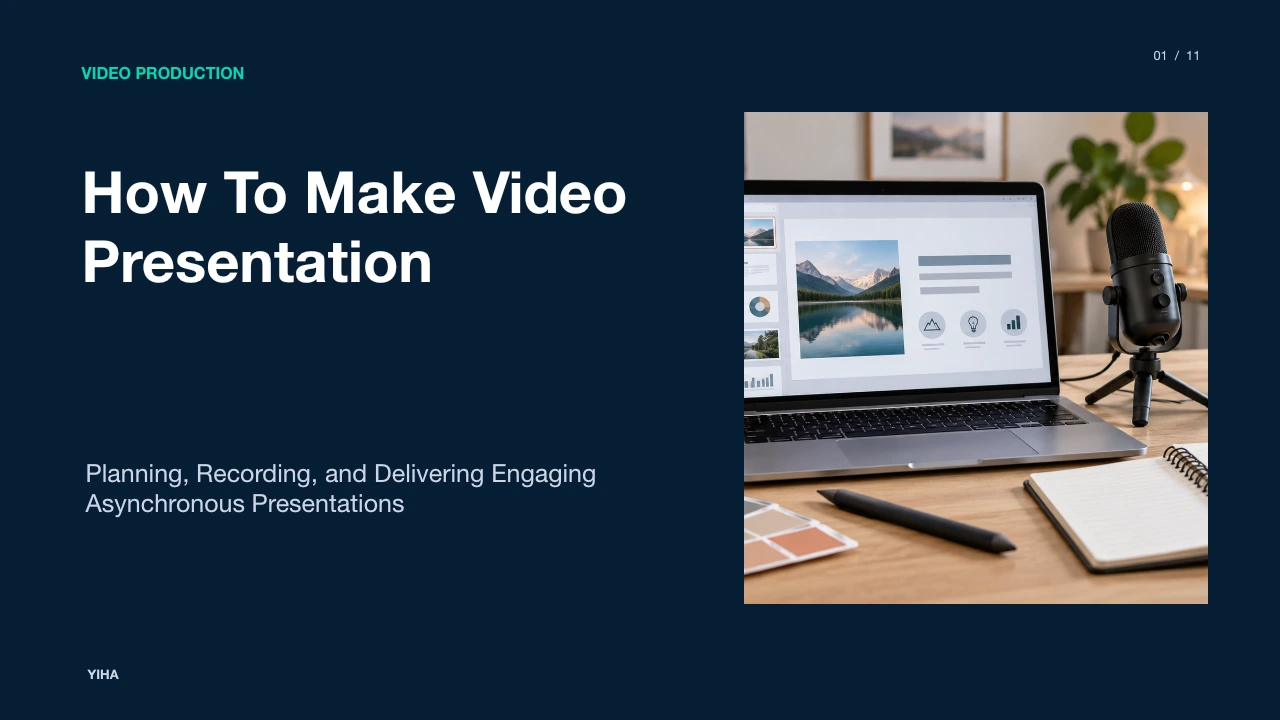
How To Make Video Presentation
A complete technical guide on how to create engaging video presentations, covering cognitive multimedia theory, scriptwriting, audio capture, editing workflows, and accessibility standards.
Free download · 4.9 MB11 editable slides · PowerPoint format
Download the editable PPTX
PPTX · 4.9 MB · 11 editable slides · Free to edit and reuse with attribution to Yiha.ai
View every slide
Use ← →, Home/End, or swipe on mobile
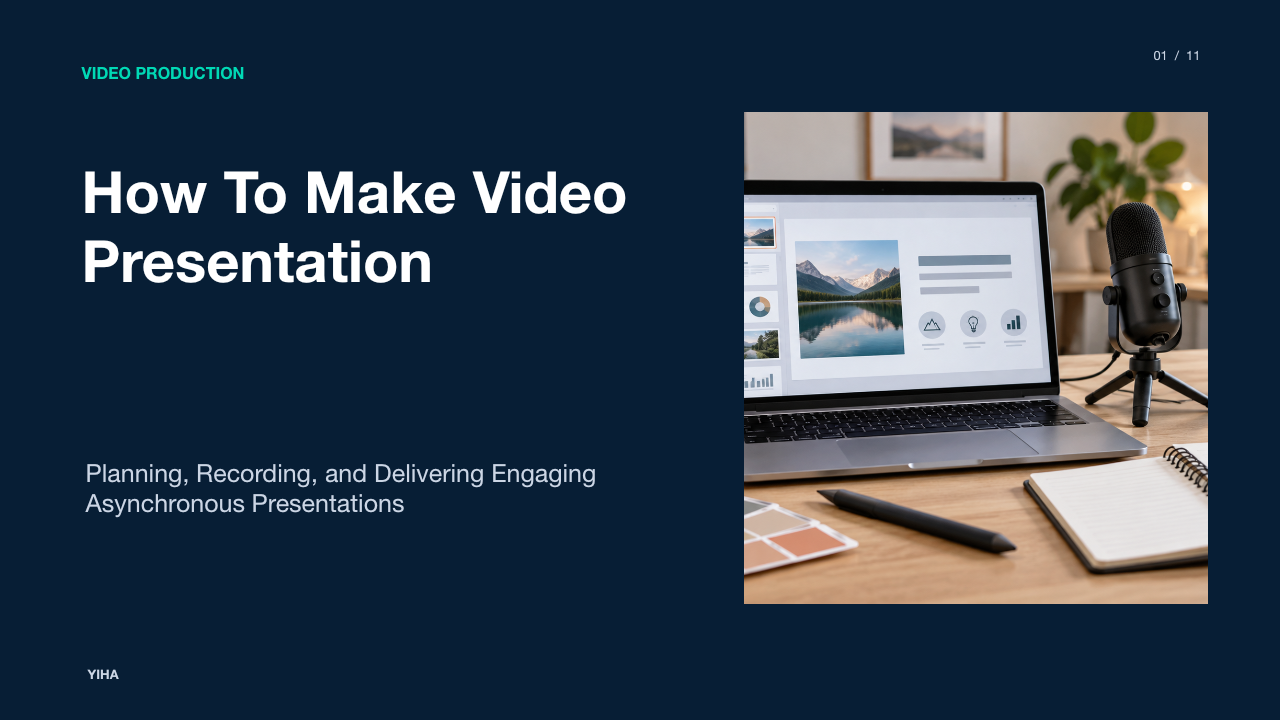
Video presentations combine visual materials and spoken narrative into an accessible recorded format. Organizations and educators increasingly rely on recorded presentations to deliver project updates, product walkthroughs, and instructional lessons without the scheduling friction of live meetings. Moving from static slides to dynamic video requires deliberate planning across instructional design, technical capture, editing, and distribution.
Creating an effective presentation video involves more than clicking record on a webcam. High retention depends on structuring information around how human working memory processes images and sound, writing scripts tailored for natural vocal pacing, capturing crisp audio, and delivering accessible video files. This guide examines each stage of the production process to help you build clear, professional video presentations.
The Shift to Asynchronous Video Communication
Traditional workplace communication often relies on synchronous meetings or static slide attachments. However, live virtual calls can create scheduling bottlenecks across time zones, while standalone slide decks frequently lack the necessary nuance and vocal context. As highlighted in How to Make a Video Presentation: The Complete Guide, asynchronous video presentations allow teams to educate and align viewers without demanding real-time attendance. Viewers gain autonomy to watch, pause, replay, or speed up playback according to their individual learning needs.
Different communication goals require distinct video formats. Live presentations via tools like Zoom or Microsoft Teams suit interactive group discussions, but prerecorded video presentations excel for recurring training, onboarding decks, and executive updates. Furthermore, converting slide decks into narrated video files allows presenters to preserve visual structure while providing guided spoken context. As noted by How to Make a Video Presentation in 7 Simple Steps, watching and listening to an explanation unfold together feels more accessible to modern audiences than reading dense text documents.
Cognitive Load and Dual-Channel Information Processing
Effective presentation videos respect human cognitive architecture. Educational psychologist Richard E. Mayer established the Cognitive Theory of Multimedia Learning, which posits that the human mind processes information through two separate channels: a visual channel for pictorial material and an auditory channel for spoken words. A thorough analysis of Mayer's research published by McGraw-Hill Canada outlines two critical foundations: the limited capacity assumption and the active processing assumption.
The limited capacity assumption reminds producers that working memory holds only a finite amount of information at any moment. When a slide presents dense blocks of text while a speaker reads different words aloud, both visual text and graphics flood the visual processing channel, causing split-attention overload. To prevent this, slides should display simple diagrams, charts, or concise keyword cues while the speaker provides explanatory context through the auditory channel. Mayer also outlines the active processing assumption, noting that learners must actively construct mental models. Structuring your video around clear schemas, such as a cause-and-effect process chain or a comparative matrix, supports deep retention and long-term memory storage.
Scripting and Narrative Architecture for Video
Reading bullet points directly off a slide results in a stiff delivery. Writing a spoken-word script requires a conversational register that mimics natural dialogue. In instructional and promotional contexts, narrative frameworks keep pacing brisk and focused. As discussed in How to Make Problem-Agitate-Solution Video Ads (2026), direct-response structures such as Problem-Agitate-Solution provide a dependable narrative framework: hook the audience by identifying a specific problem, articulate the cost of unresolved friction, and introduce the presentation's method or finding as the clear solution.
To budget time effectively, plan spoken words around a standard conversational cadence. For an illustrative example, a speaker delivering 130 to 150 words per minute will need roughly 400 words for a concise three-minute product walkthrough. Break complex explanations into distinct topical chunks so that each segment addresses a single concept. As recommended in How to Make a Video Presentation: The Complete Guide, avoiding overcrowded slides and speaking directly to each core idea keeps audiences engaged from opening hook to final conclusion.
Storyboarding and Pre-Production Visual Planning
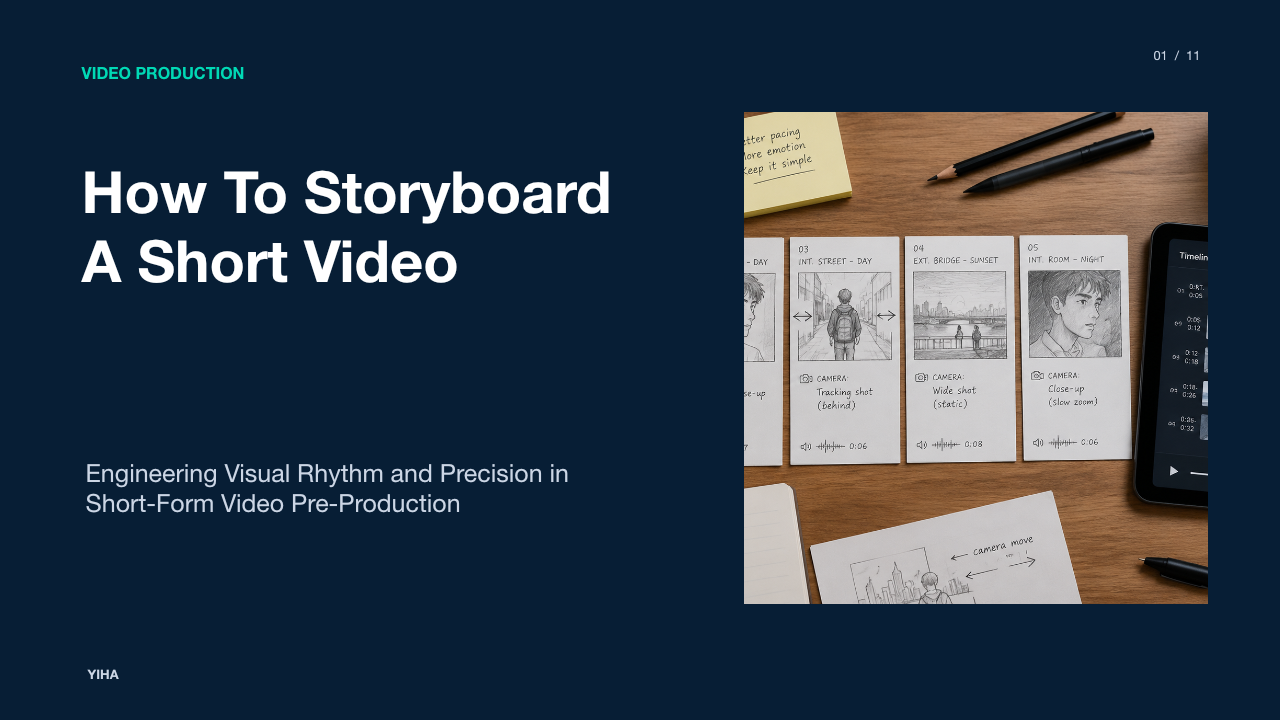
Pre-production visual planning bridges your written script and the physical recording session. A storyboard acts as a visual blueprint that maps scenes, camera angles, slide changes, and screen movements. As explained by How to Make a Storyboard for a Video: Complete Guide, storyboarding enables creators to establish narrative flow, verify continuity, and spot logic gaps before turning on recording equipment. Creators can draft rough thumbnail storyboards when rapid alignment is required, or detailed boards that specify transitions, graphic overlays, and shot framing.
Cinematic production principles offer practical value for desktop presenters. In How to make a shot list, Adobe emphasizes planning camera setups rather than improvising coverage on recording day. Establishing an organized shot list with numbered scenes ensures you capture necessary visual assets, such as wide overview shots, screen recordings, and camera close-ups, in single setups. Planning visual framing ahead of time prevents chaotic reshoots and streamlines the final editing process.
Audio Quality, Microphone Selection, and Acoustics
Viewers will tolerate modest visual fidelity, but unintelligible or harsh audio quickly destroys professional credibility. Built-in computer microphones pick up internal fan noise, room reflections, and ambient keyboard clicks. As emphasized in How to Make a Video Presentation in 7 Simple Steps, clear audio matters more than sharp video, and adding an external microphone immediately elevates production quality. Presenters can select USB condenser microphones for detailed vocal pickup in treated rooms or dynamic microphones that naturally reject ambient background noise in untreated office spaces.
Acoustics play a decisive role in vocal clarity. Hard surfaces like bare walls, hardwood floors, and glass windows cause sound waves to bounce back into the microphone, creating hollow reverb. You can improve room acoustics by recording in carpeted areas, positioning soft furnishings or acoustic foam nearby, and maintaining a consistent microphone distance of four to six inches. Additionally, managing input gain levels before recording ensures your voice avoids digital clipping distortion during enthusiastic remarks.
Lighting, Camera Framing, and Visual Composition
Visual composition communicates authority and keeps the viewer focused on the presenter. Positioning your webcam at eye level produces a natural, engaging angle, whereas low laptop cameras point upward toward ceilings and distort perspective. Setting up clear lighting prevents shadowy, pixelated video feeds. A basic three-point lighting arrangement, comprising a dominant key light, a softer fill light, and a subtle backlight, separates the speaker cleanly from the background.
Background composition requires thoughtful decluttering to avoid distracting visual elements. As shown in How to Make an Interactive Video Presentation: A Step-by-Step Guide, attention drifts when visual stimuli remain static or cluttered. Molecular biologist John Medina observed in Brain Rules that human attention naturally drifts after roughly 10 minutes unless the presenter introduces a visual or structural change. In recorded video presentations, subtle shifts in framing, occasional screen annotations, or transitions between full-screen slides and presenter camera feeds maintain visual interest throughout longer lectures.
Selecting Recording Modalities and Production Software
Selecting the right recording modality depends on the complexity of your presentation materials. Standard office suites allow presenters to export slide narrations directly into video files. According to How to Make a Video Presentation With Audio in 8 Steps, platforms like PowerPoint allow users to record slide timings and audio voiceovers, exporting the final deck directly to an MP4 video file. This workflow suits linear presentations that do not require external software demonstrations.
When presentations demand live software navigation or personal engagement, screen recording tools provide flexible capture options. Platforms such as Loom capture the desktop display alongside an inset webcam bubble, offering on-screen drawing tools to highlight specific buttons or data points during live capture. For advanced productions requiring multiple camera inputs, custom sound staging, or split-screen scenes, open-source utilities like OBS Studio provide comprehensive control over audio-video sources without subscription costs.
Post-Production Editing, Pacing, and Captioning
Post-production turns raw video takes into a coherent final product. Import raw assets into dedicated editing tools like Adobe Premiere Pro, iMovie, or browser editors. First, cut out false starts, long silences, and distracting vocal disfluencies. Tightening dead air between slide changes establishes an engaging tempo. However, avoid overusing flashy transitions, 3D animations, and loud background music tracks, as these elements clutter the visual channel and detract from the message.
Adding timed text captions is essential for accessible viewing. As stated by the W3C Web Accessibility Initiative in Captions/Subtitles, captions provide an accurate text version of speech and meaningful non-speech audio information for people who are deaf or hard of hearing, as well as those viewing in sound-sensitive environments. While automated speech-to-text tools accelerate subtitle generation, automated transcripts frequently mishear technical terminology or omit crucial negative qualifiers like "not." Presenters must manually edit automated captions to ensure complete factual precision.
Publishing, Accessibility Standards, and Measuring Impact
Before publishing your presentation, perform a comprehensive review of the rendered output. Check for audio sync drift, visual artifacts, and typographical errors. Export the final cut in an industry-standard format such as MP4 using the H.264 codec, which provides an optimal balance of sharp visual fidelity and lightweight file size across modern web browsers and mobile devices.
Accessibility compliance requires following established standards. Under Understanding Success Criterion 1.2.2: Captions (Prerecorded), prerecorded synchronized media must include synchronized captions that identify speakers and sound events without obstructing essential on-screen slide data. Once your video is hosted on your internal portal or learning management platform, evaluate audience impact using platform analytics. Monitoring viewer retention drop-off graphs and completion rates reveals exactly where viewers paused, rewound, or dropped off, providing concrete diagnostic data to refine your future presentations.
Research sources
- How to Make a Video Presentation: The Complete Guide · www.atlassian.com
- How to make a shot list - Adobe · www.adobe.com
- How to Make a Video Presentation in 7 Simple Steps | SlidesAI · www.slidesai.io
- Richard Mayer’s Cognitive Theory of Multimedia Learning | McGraw-Hill Canada · www.mheducation.ca
- How to Make Problem-Agitate-Solution Video Ads (2026) | VIDEOAI.ME Blog · videoai.me
- How to Make a Storyboard for a Video: Complete Guide | Flixier · flixier.com
- How to Make an Interactive Video Presentation: A Step-by-Step Guide · visme.co
- How to Make a Video Presentation With Audio in 8 Steps · visme.co
- Captions/Subtitles | Web Accessibility Initiative (WAI) | W3C · www.w3.org
- Understanding Success Criterion 1.2.2: Captions (Prerecorded) | WAI | W3C · www.w3.org