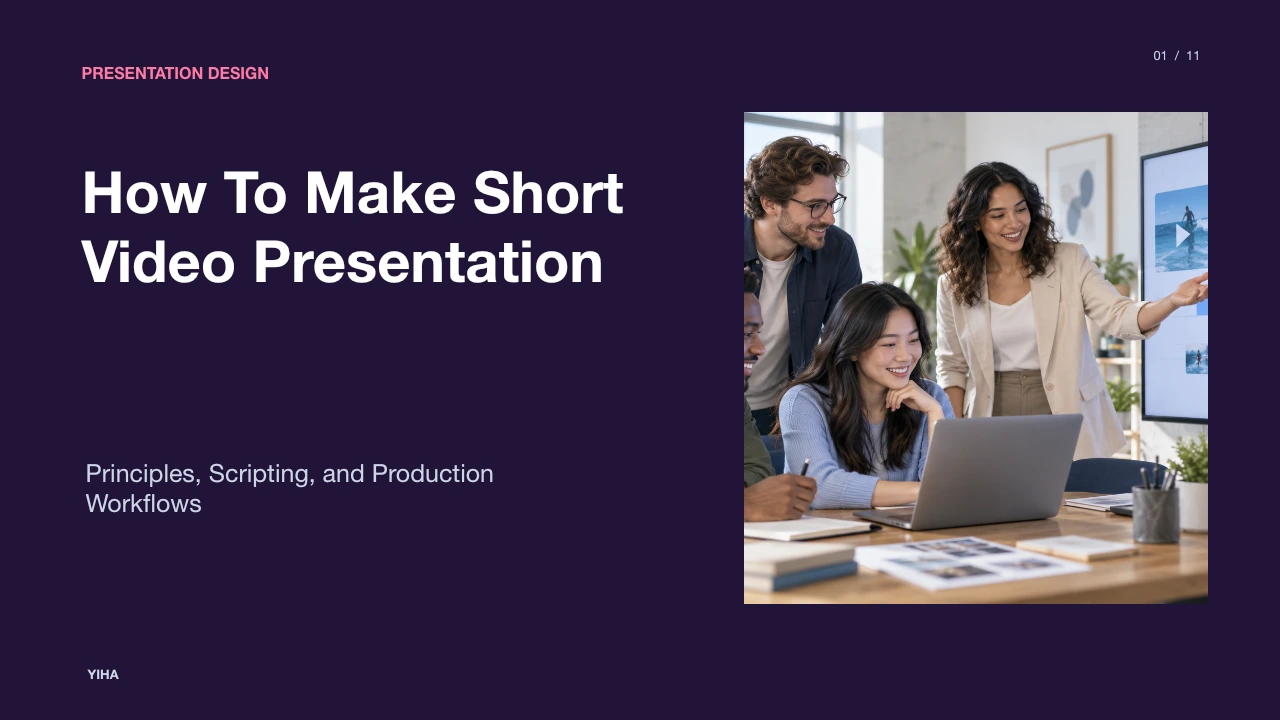
How To Make Short Video Presentation
A comprehensive guide to producing concise video presentations that maximize retention, minimize cognitive overload, and communicate complex ideas clearly.
Free download · 4.9 MB11 editable slides · PowerPoint format
Download the editable PPTX
PPTX · 4.9 MB · 11 editable slides · Free to edit and reuse with attribution to Yiha.ai
View every slide
Use ← →, Home/End, or swipe on mobile
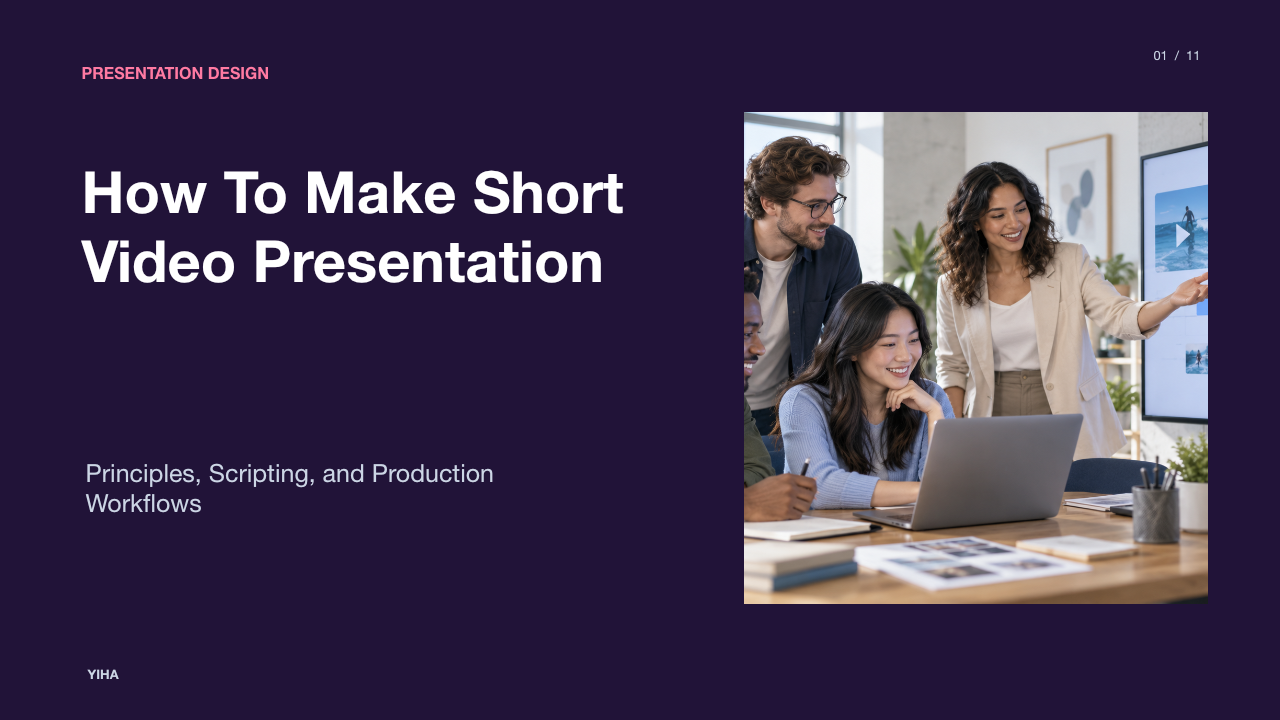
Short video presentations have become a primary vehicle for business updates, technical demonstrations, onboarding tutorials, and asynchronous collaboration. Creating a successful short video presentation requires more than compressing an existing slide deck into a recording. Presenters must understand how human cognitive architecture processes audio and visual information, how to scope content into discrete modules, and how to execute focused scripts and visual designs that keep viewers engaged.
Cognitive Foundations of Short Video Presentations
Human working memory operates under strict physiological capacity limits. According to research published in Effective Educational Videos: Principles and Guidelines for Maximizing Student Learning from Video Content, cognitive load theory divides mental effort into three distinct forms: intrinsic load, germane load, and extraneous load. Intrinsic load reflects the core difficulty of the topic itself, such as the inherent interconnectedness of a technical process. Germane load represents the productive mental work required to organize and integrate concepts into schema. Extraneous load represents unnecessary mental processing caused by poor presentation design, irrelevant graphics, or confusing instructions.
Building upon this model, Richard Mayer's cognitive theory of multimedia learning demonstrates that working memory possesses two separate processing channels: an auditory and verbal channel, and a visual and pictorial channel. If a presenter displays walls of text while reading aloud, both inputs saturate the verbal channel, creating split-attention and degrading comprehension. Presenters can prevent overload by pairing spoken narration with relevant visual representations rather than repetitive on-screen sentences. Furthermore, educational design frameworks emphasize signaling (or cueing), which uses arrows, color contrast, and keywords to guide visual attention, as well as weeding, which systematically eliminates decorative music, unnecessary backgrounds, and irrelevant trivia.
Determining Scope and Video Duration
An essential design requirement for short video presentations is ruthless scoping. Viewers do not experience digital video as an open-ended lecture. Empirical evidence from massive open online course data analyzed in Effective Educational Videos: Principles and Guidelines for Maximizing Student Learning from Video Content indicates that the median engagement time across millions of video sessions peaks at six minutes. For videos under six minutes, viewers showed median completion rates close to 100 percent. As video duration expanded to nine through twelve minutes, median engagement dropped toward 50 percent, and for videos stretching between twelve and forty minutes, median engagement plummeted to roughly 20 percent.
This evidence yields a concrete scoping rule: each video presentation should focus on one standalone objective. Commercial analysis from Good Video Retention Rate Benchmarks for Shorts, TikTok and YouTube similarly highlights that viewer drop-off happens within seconds when an introduction fails to clarify the video's immediate utility. For microlearning modules or standalone social presentations, a runtime range recommendation of 60 to 90 seconds works well for a single operational tip. For internal professional briefings or conceptual lectures, a duration recommendation of three to six minutes maintains high retention without exceeding cognitive limits. If a topic contains three complex sub-processes, dividing the presentation into three distinct videos prevents viewer fatigue.
Structuring the Narrative Flow
Because attention drops quickly, a short video cannot afford lengthy conversational introductions or delayed explanations. As outlined in How to Make a Video Presentation: The Complete Guide, presentations require a distinct narrative structure containing a clear beginning, middle, and end so viewers can follow the progression effortlessly.
A compact storytelling structure requires the following sequence:
- Opening Hook: Identify the exact problem, conflict, or central question within the first three to five seconds.
- Context and Stakes: Establish why the issue matters and outline what is at risk if it remains unresolved.
- Core Insight: Present the primary mechanism, data point, or solution through a clear demonstration.
- Actionable Payoff: Conclude with a direct next step, measurable takeaway, or specific decision prompt.
Practical guidelines from Short-Form Video Storytelling for a 60-Second Arc emphasize that in a 60-second arc, the structural turning point must occur before the halfway mark. If the first 25 seconds consist only of introductory context, viewers leave before the payoff. Every second must justify its place in advancing the narrative.
Writing Dual-Column Audio-Visual Scripts
Attempting to record a concise video presentation without a formal script frequently results in verbal hedging, redundant explanations, and mismatched pacing. The standard professional framework for scripting short instructional and commercial video is the two-column audio-visual (AV) script. As detailed in How to Make a Music Video Storyboard [FREE Template], an AV script maps out visual actions on the left side and corresponding audio elements, dialogue, and sound effects on the right side.
| Video (Visual Cues & Screen Action) | Audio (Spoken Narration & Audio Cues) |
|---|---|
| Close-up capture of dashboard error prompt. High-contrast red arrow points to configuration flag. | "If your build fails at deployment step three, the issue usually stems from an unmapped port." |
| Screen recording switches to settings panel. Mouse clicks environment tab and types corrected port number. | "Open your environment configuration, locate the port definition, and update the default value to 8080." |
| Diagram displays completed sync checkmark next to database cluster. | "Save changes and re-run. Your cluster will now handshake in under two seconds." |
Planning visual changes alongside spoken sentences forces the presenter to evaluate pacing before recording. Spoken English in professional presentations typically flows at a rate of 130 to 160 words per minute. A presenter targeting a 90-second instructional clip can prepare a script of approximately 200 to 220 words. Writing the exact spoken narration prevents rambling and guarantees that visual changes occur in lockstep with the explanation.
Storyboarding Key Visuals and Signaling Cues
Once the script is established, the presenter must storyboard the visual sequence. As explained in Why Short-Form Video Needs a Storyboard, a storyboard converts script sentences into visible spatial decisions, establishing shot framing, asset continuity, and screen duration before production begins. A well-designed storyboard ensures that each visual change serves a defined purpose, whether to establish an overview, highlight evidence, or show a result.
Production teams must also incorporate the signaling principle described in educational literature. Research cited in Effective Educational Videos: Principles and Guidelines for Maximizing Student Learning from Video Content demonstrates that highlighting on-screen elements using concise keywords, color shifts, or targeted callout boxes reduces extraneous load and directs visual attention where working memory needs it most. Every storyboard frame should eliminate clutter such as unnecessary background art, decorative transitions, or non-essential interface panels.
Selecting Production Format and Recording Equipment
Choosing the right visual format depends directly on the presentation's communication goals. As discussed in How to Make a Video Presentation: A Step-by-Step Guide, presenters typically select among talking-head videos, screencasts, slide-driven recordings, or hybrid presentations combining presenter camera feeds with screen captures.
Each format provides distinct pedagogical and engagement tradeoffs:
- Talking-Head Format: An on-camera presenter builds personal connection and social presence, making it ideal for leadership messages or strategic overviews. However, research in Effective Educational Videos: Principles and Guidelines for Maximizing Student Learning from Video Content observes that relying solely on a talking head to explain complex technical mechanisms underutilizes the visual channel.
- Screencasts: Capturing live software workflows or document reviews offers maximum visual clarity for procedural demonstrations. Presenters must ensure mouse movements are deliberate and smooth.
- Slide-Driven Presentations: Highly structured diagrams and concise visual models allow learners to absorb conceptual relationships at an even pace.
- Hybrid Format: Positioning a talking-head webcam window alongside a screencast or slide canvas provides instructor presence while conveying complex technical graphics simultaneously.
Production equipment does not require studio facilities, but baseline hardware standards must be maintained. Presenters should position an external microphone close to the audio source, position diffused light in front of the presenter to avoid harsh shadows, and align the webcam at eye level to support direct audience connection.
Editing for Pacing and Attention Retention
Post-production editing transforms a raw capture into an efficient presentation. In How to Make a Video Presentation: The Complete Guide, the editing process is highlighted as a tool to cut awkward pauses, trim verbal fillers, remove typos, and align visual timing with vocal delivery. Automated tools and dedicated non-linear editing software allow creators to remove dead air and maintain natural momentum.
Retention data from Good Video Retention Rate Benchmarks for Shorts, TikTok and YouTube reveals that retention graphs frequently show sharp drops at specific points where a video stalls, repeats an idea, or lingers on a static image. Video editors must implement visual resets, introducing a supportive graphic, changing shot scale, or adding a concise keyword every four to eight seconds. Conversely, editors must avoid excessive decorative transitions, intrusive sound effects, or loud background music, which distract viewers and consume working memory.
Ensuring Accessibility and Multimodal Access
Digital presentations must remain accessible to all individuals, including people with hearing, visual, or cognitive impairments. The Web Accessibility Initiative of the World Wide Web Consortium establishes core accessibility practices in Making Audio and Video Media Accessible and Planning Audio and Video Media.
Planning accessibility from early scripting stages prevents costly retrofits and ensures compliance with universal design principles:
- Accurate Closed Captions: Captions must transcribe both spoken dialogue and essential background audio cues so viewers who are deaf or hard of hearing receive identical context. Automatic captioning tools require careful manual review to eliminate technical misspellings.
- Integrated Audio Descriptions: Presenters should explicitly voice on-screen information as they speak. Stating data trends out loud ensures users with visual impairments understand screen visuals without requiring separate audio description tracks.
- Visual Contrast and Typography: On-screen titles and data labels must maintain high visual contrast ratios against backgrounds, utilizing legible sans-serif fonts sized for mobile and desktop screens.
- Downloadable Transcripts: Offering a text transcript alongside the video allows users of assistive devices, including braille displays, to review material at their own pace.
Embedding Active Engagement and Measuring Impact
Watching a video can easily devolve into passive consumption unless presenters design mechanisms that require active mental participation. In Effective Educational Videos: Principles and Guidelines for Maximizing Student Learning from Video Content, research demonstrates that segmenting video content and interpolating self-testing questions between brief video modules significantly improves post-assessment retention and reduces mental mind-wandering.
Presenters can implement interactive prompts by pausing after presenting a central problem and directing viewers to formulate an answer before resuming playback. Modern presentation platforms also enable interactive quizzes, clickable navigation menus, and chapter markers. Chapter markers give viewers direct agency over their learning paths, allowing them to review difficult sections or skip prerequisite material.
Finally, creators must measure presentation impact through engagement analytics. Rather than relying solely on total view counts, presenters should examine average percentage viewed, completion rates, and specific drop-off timestamps. When analytics reveal a drop at a particular slide or demonstration step, creators can pinpoint whether the explanation was too slow, too abstract, or visually overloaded, allowing continuous iteration toward clearer, more effective video presentations.
Research sources
- Effective Educational Videos: Principles and Guidelines for Maximizing Student Learning from Video Content - PMC · pmc.ncbi.nlm.nih.gov:443
- How to Make a Video Presentation: The Complete Guide · www.atlassian.com
- How to Make a Video Presentation in 7 Simple Steps | SlidesAI · www.slidesai.io
- Good Video Retention Rate Benchmarks for Shorts, TikTok and YouTube · www.nitromediagroup.com
- Short-Form Video Storytelling for a 60-Second Arc · www.capcut.com
- Short Form Video Trends That Actually Work in 2026 · www.revid.ai
- How to Make a Music Video Storyboard [FREE Template] · www.studiobinder.com
- Why Short-Form Video Needs a Storyboard | StoryToShot · www.storytoshot.com
- How to Make a Storyboard: Ultimate Step-by-Step Guide · www.studiobinder.com
- How to Make a Video Presentation: A Step-by-Step Guide · www.veed.io
- Planning Audio and Video Media | Web Accessibility Initiative (WAI) | W3C · www.w3.org
- Making Audio and Video Media Accessible | Web Accessibility Initiative (WAI) | W3C · www.w3.org