Create Presentation Videos
A technical guide to converting static slide decks into asynchronous presentation videos using cognitive load theory, automated video pipelines, and accessible delivery standards.
Free download · 4.9 MB11 editable slides · PowerPoint format
Download the editable PPTX
PPTX · 4.9 MB · 11 editable slides · Free to edit and reuse with attribution to Yiha.ai
View every slide
Use ← →, Home/End, or swipe on mobile
Converting traditional slide decks into asynchronous presentation videos allows teams and educational institutions to share structured explanations across different schedules and physical locations. In live meetings, speakers frequently spend time delivering one-way information, leaving little room for analysis or feedback. Asynchronous presentation videos package visual aids, spoken narration, and demonstrations into self-contained units that viewers can watch at their own pace. This guide outlines the instructional design considerations, technological workflows, and operational standards required to design, produce, and maintain professional presentation videos.
The Shift from Static Slide Decks to Asynchronous Video
Distributing static slide decks has historically forced authors into a difficult compromise: slides either contain dense blocks of text so they can function as standalone reading material, or they remain sparse and require live spoken explanation to make sense. When distributed as unannotated files, text-heavy decks often lead to reader misinterpretation and fatigue. In contrast, modern asynchronous video bridges geographic boundaries and time zones by pairing visual representations with guided verbal narration.
Platforms such as VisionStory AI Presentation Maker demonstrate how organizations convert static slide decks directly into narrated video assets to support remote onboarding, project status briefings, and operational documentation. Rather than coordinating live video conference calls across conflicting schedules, creators produce pre-recorded walkthroughs. The primary operational limitation of this shift is the upfront recording effort. While an author can email an unrecorded slide deck immediately, a presentation video requires explicit planning, structured recording or synthesis, and structured review before distribution.
Cognitive Processing in Dual-Channel Multimedia Learning
From an instructional design analysis perspective, effective presentation videos must manage the viewer's cognitive processing capacity. As observed in workflow analysis from Revid Batch Video Creation Guide, continuous task switching and unstructured presentation formats drain mental focus and induce fatigue. In video design, presenting dense blocks of text while speaking unrelated points divides attention across competing sensory inputs.
Production platforms highlighted in Vyond Training and eLearning Videos address this challenge by separating rich visual scenes, character actions, and modular templates from spoken tracks. Analysis indicates that presentation designers should avoid duplicating spoken scripts as on-screen paragraphs. Instead, visual frames should display diagrams, process structures, and relevant interface demonstrations while the audio track delivers narrative elaboration. Balancing visual graphics with focused spoken explanation ensures learners absorb instructional content without experiencing cognitive overload.
Architectures of Document-to-Video and Synthetic Generation
Document-to-video pipelines have evolved significantly from basic screen recordings. Automated systems parse presentation files such as PPTX or PDF decks, separate visual assets from speaker notes, and feed the extracted narrative into synthetic voice engines. As documented by VisionStory AI Presentation Maker, modern systems automatically parse slide structures, generate slide-by-slide narration, and sync digital presenters with minimal manual timeline configuration. For optimal file parsing performance, the platform recommends keeping uploaded presentations to 20 slides or fewer per batch.
These automated workflows typically consist of three pipeline layers:
- Slide Ingestion: The platform ingests vector assets, raster graphics, and speaker notes directly from the source presentation.
- Script and Audio Synthesis: The platform uses language models to convert speaker notes into continuous narration scripts, which are then passed to text-to-speech engines.
- Scene Compositing: The engine aligns synthesized audio tracks, slide transitions, dynamic callouts, and digital avatars into a rendered video timeline.
While these automated tools accelerate initial draft production, human editorial review remains necessary to ensure terminology accuracy, natural cadence, and correct visual synchronization.
Pacing and Segmentation Dynamics in Recorded Presentations
Directly transferring a 50-minute live presentation into an uninterrupted video recording consistently degrades viewer focus and retention. Live presentations rely on immediate interpersonal interaction, ambient environmental cues, and spontaneous questions to sustain attention. Asynchronous video viewers, however, experience higher fatigue when forced to consume lengthy, continuous video streams.
Instructional media requires explicit segmentation, dividing comprehensive topics into self-contained chapters. Online creation platforms like Powtoon Video Presentation Maker provide pre-built modular scenes and chapter structures that enable creators to assemble bite-sized video modules. For complex technical or enterprise briefings, authors should establish a single learning objective per clip. Illustrative example: An instructional designer breaking a software deployment manual into three separate four-minute recordings covering environment prerequisites, installation commands, and system verification will generally achieve higher viewer completion rates than one who produces an uninterrupted twelve-minute file.
Visual Signaling and Script Alignment for Slide Narration
Visual signaling uses dynamic graphical cues to direct the audience's visual attention to the specific onscreen area being discussed by the narrator. In recorded videos, static bullet points allow viewers to read ahead and disconnect from the audio track. Introducing dynamic zoom effects, highlight boxes, spotlight overlays, and progressive asset reveals ensures visual cues align precisely with narrative beats.
Script writing must also be tightly coupled with visual pacing. Content production frameworks outlined in Revid Batch Video Creation Guide illustrate how structured script grids link distinct spoken hooks and body points directly to bracketed visual cues. Applying explicit scene break indicators and timed pause tags guarantees that graphics do not change prematurely while the audio explanation is still finishing. Authors should eliminate redundant on-screen paragraphs, replacing them with visual anchors that reinforce the spoken argument.
Comparing Screen Recording, Motion Graphics, and AI Avatars
Presentation creators generally select between three distinct video formats depending on communicative goals, technical complexity, and production resources:
- Direct Screen Capture: Best suited for software demonstrations, code reviews, and detailed document walkthroughs. Screen recordings capture real workflows accurately and require minimal timeline compositing, but they offer limited visual polish and can become visually tedious during abstract conceptual discussions.
- 2D Motion Graphics: Employs vector illustrations, kinetic typography, and animated characters to explain conceptual models and process architectures. Supported by platforms like Synthesia Text to Video AI and animated libraries, this format holds audience engagement well during abstract training but demands more scripting effort and visual asset preparation.
- Synthetic AI Avatars: Digital presenters deliver synthesized scripts against slide backgrounds. This format establishes personal presence without requiring physical studio lighting, cameras, or multiple live recording takes. However, avatar gestures can appear repetitive, and synthetic delivery may fail to convey authentic emotion during high-stakes executive updates.
Technical Constraints in LMS Integration and Video Delivery
Distributing video presentations across organizational Learning Management Systems (LMS) and internal portals introduces specific infrastructure and compliance requirements. Simply saving a video file is rarely sufficient for corporate learning environments. Training teams require reliable completion tracking, bookmarking capabilities, and platform-wide accessibility compliance.
As specified by Vyond Training and eLearning Videos, learning platforms require video exports in standardized formats like MP4 or packaged into SCORM compliance containers. SCORM packaging allows LMS administrators to track whether a learner has finished watching the required video and passed embedded knowledge checks. Concurrently, public and enterprise regulations require accessibility compliance, necessitating synchronized WebVTT captions, accessible transcripts, and clear audio descriptions for all critical onscreen visual elements.
A Structured Production Pipeline for Presentation Videos
Producing presentation videos at scale requires a repeatable, phased operational pipeline. Ad-hoc recording workflows frequently stall due to repeated takes, disjointed script revisions, and audio balancing problems. Teams achieve higher output quality by splitting the process into distinct, sequential stages:
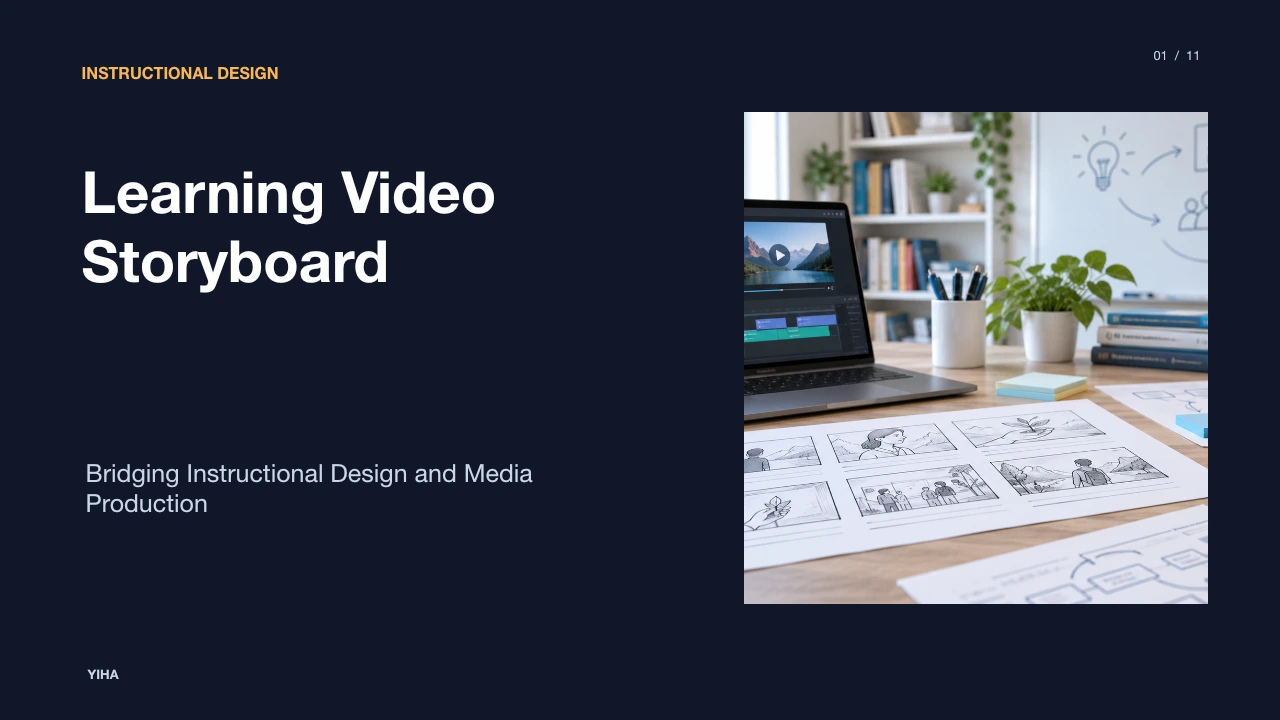
- Pre-Production: Outline learning objectives, write structured narration scripts in a shared grid, and create initial slide visuals. Confirm that every slide contains clear visual anchors and minimal plain text.
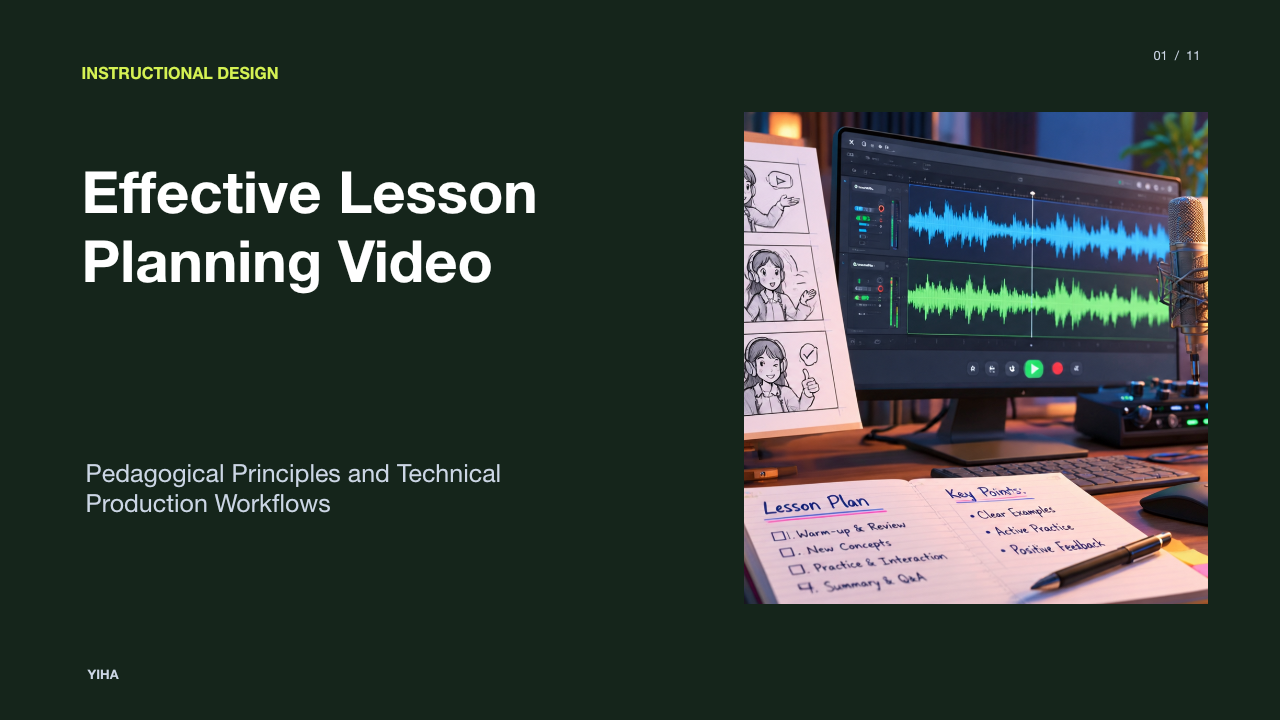
- Production Batching: Record or synthesize narration tracks in a unified batch to maintain consistent audio quality and vocal volume. Systems that utilize motion pipelines, such as Vidu AI Animation Generator, show the value of setting clear reference frames and motion drafts early to evaluate continuity before entering final assembly.
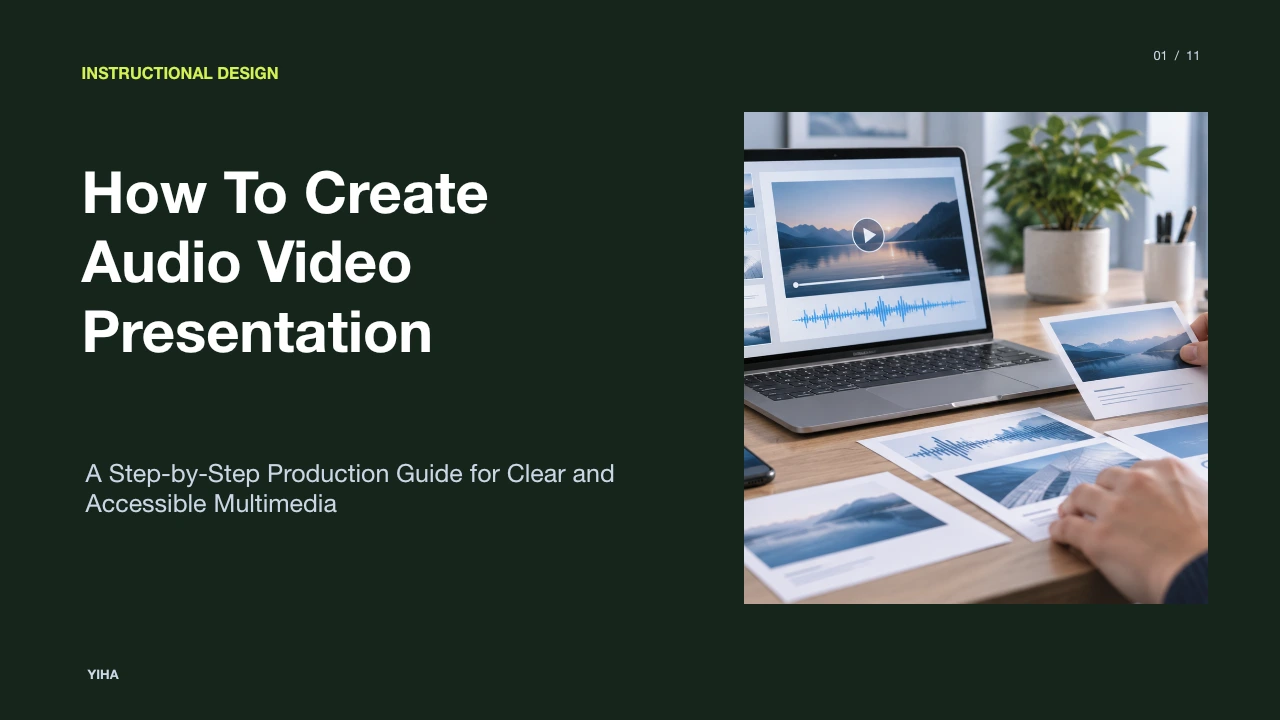
- Timeline Assembly and Audio Leveling: Synchronize speech with visual transitions, apply visual signaling highlights, and adjust audio tracks to standard loudness levels.
- Quality Assurance: Verify that captions match spoken words verbatim, test video playback on mobile devices, and confirm that exported LMS containers record progress accurately.
Asset Lifecycle Management and Multilingual Localization
Presentation video repositories require proactive lifecycle governance. Unlike static documents that can be amended with quick text edits, monolithic video files often require complete re-rendering when policies, metrics, or interface designs change. Building videos using modular chapter components allows administrators to replace a single updated slide section without rebuilding the surrounding lesson.
Global distribution also introduces translation and accessibility considerations. The W3C Web Accessibility Initiative Transcripts Guidelines state that descriptive transcripts containing both spoken dialogue and descriptions of critical onscreen actions are essential for accessibility. Furthermore, modern localization tools can translate narration into dozens of languages and regenerate synchronized captions. Maintaining version-controlled repositories of raw scripts, caption files, and visual master slides ensures that enterprise training libraries remain compliant and accurate over multi-year operational horizons.
Research sources
- AI Presentation Maker: Create Dynamic Videos from Your Slides · www.visionstory.ai
- Create eLearning Videos | Animated Training Videos | Vyond · www.vyond.com
- AI Animation Generator | Create Animated Videos with Vidu | Vidu AI · www.vidu.com
- How To Batch Create TikTok Videos (2026 Guide) · www.revid.ai
- Easily Create Videos for Work | Free Video Maker | Powtoon · www.powtoon.com
- Free Text to Video AI - Create Engaging AI Videos from Text · www.synthesia.io
- Transcripts | Web Accessibility Initiative (WAI) | W3C · www.w3.org