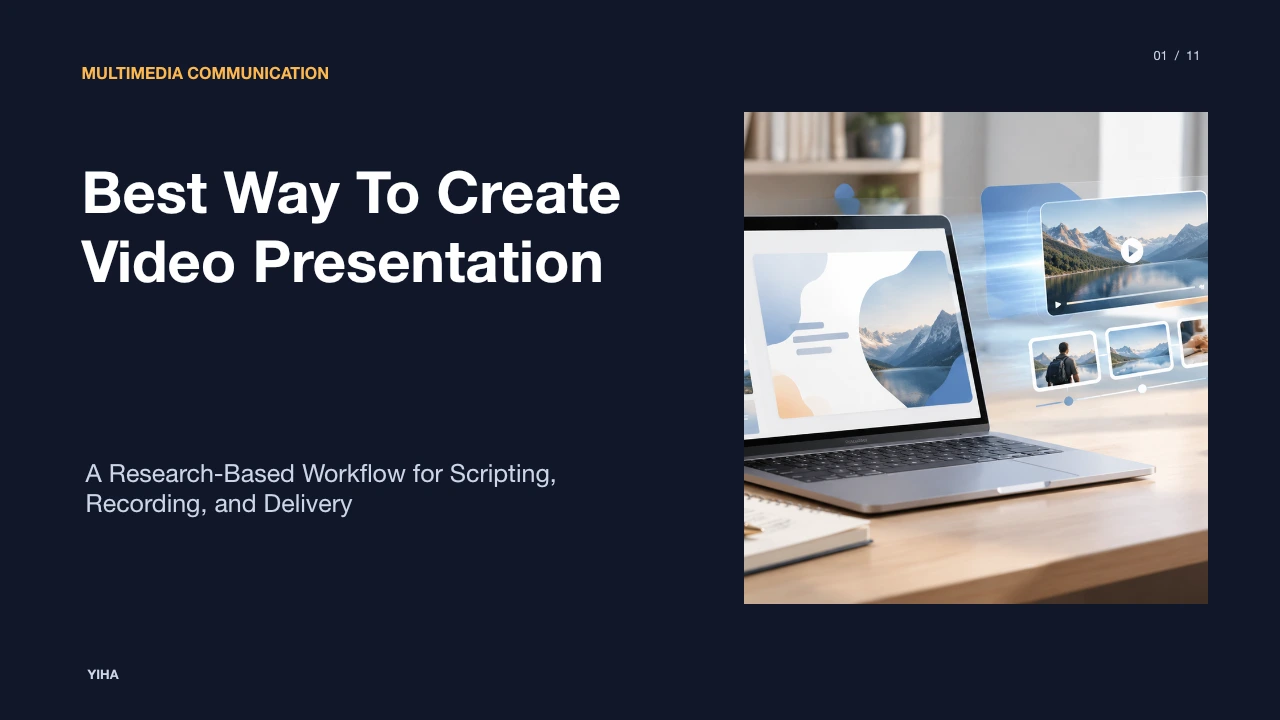
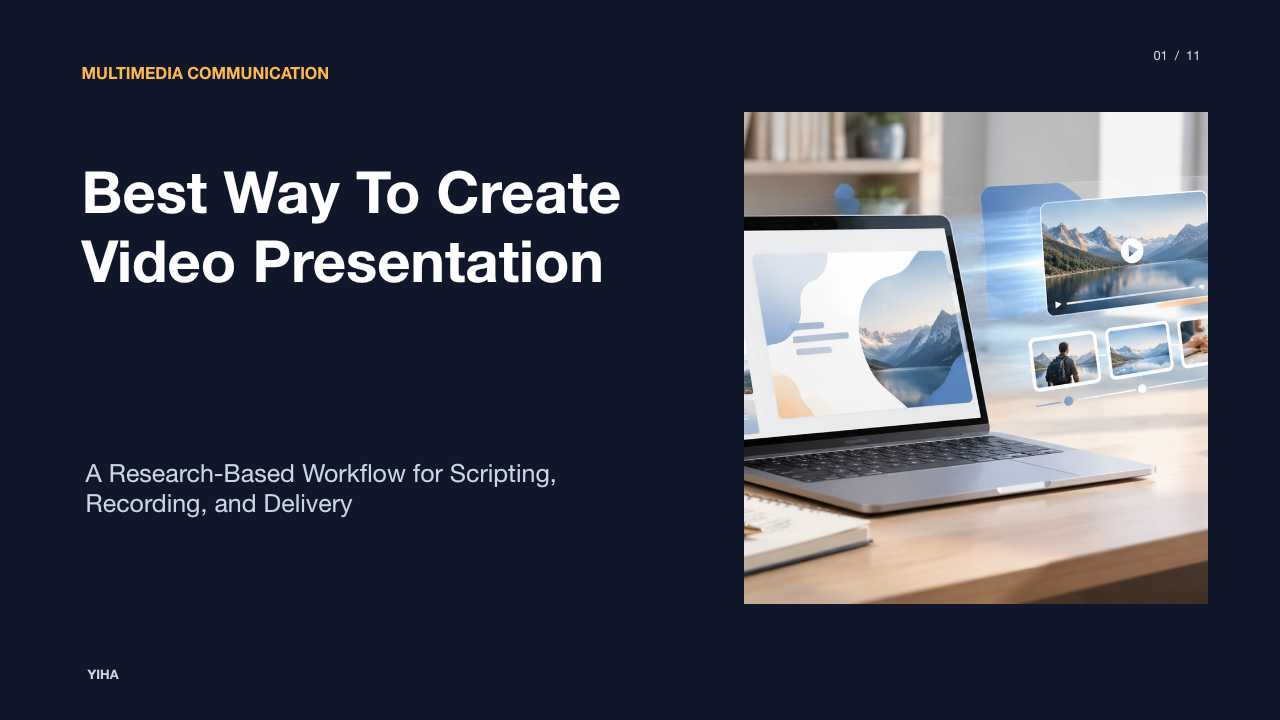
Best Way To Create Video Presentation
A comprehensive technical guide to creating recorded video presentations, covering cognitive multimedia principles, scripting, audio engineering, slide design, and distribution.
Free download · 4.9 MB11 editable slides · PowerPoint format
Download the editable PPTX
PPTX · 4.9 MB · 11 editable slides · Free to edit and reuse with attribution to Yiha.ai
View every slide
Use ← →, Home/End, or swipe on mobile
Recorded presentations have shifted from a temporary workaround to a core communication standard across modern organizations and academic environments. Creating a successful video presentation requires more than reading slides aloud into a laptop microphone. It requires a systematic production workflow that unites multimedia learning principles, structured scripting, intentional visual composition, sound engineering, and proper video encoding. This guide outlines the end-to-end process for designing and delivering effective asynchronous video presentations.
The Strategic Shift to Asynchronous Video Presentations
Traditional synchronous meetings frequently suffer from scheduling friction, differing time zones, and varying attendee attention levels. As organizations embrace distributed work, asynchronous video communication offers a reliable way to share complex information without demanding simultaneous attendance. As documented in The TechSmith Blog's guide on recording presentations, recording presentations allows audiences to consume material at their own pace, pause to reflect, and revisit specific segments on demand [1]. This approach also gives speakers the chance to refine their delivery and slide pacing before publishing, avoiding the real-time missteps common to live meetings [1].
Moreover, structured video production establishes organizational documentation that can be reused across teams. According to Ziflow's video production workflow guide, establishing an organized production pipeline helps teams move from initial concepts to polished deliverables while maintaining brand standards and clear review stages [1]. However, asynchronous formats also present limitations. Presenters do not receive immediate audience feedback, making it essential to anticipate audience questions and maintain strict clarity throughout the material.
Cognitive Foundations and Dual-Channel Information Processing
Effective video presentations rely on how the human mind processes incoming media. Educational research demonstrates that working memory processes visual and verbal inputs through separate channels. When a presenter displays dense blocks of text while speaking aloud, both streams compete for verbal processing capacity, creating cognitive overload that impairs retention.
Platforms that automate multimedia generation emphasize this fundamental dynamic. As noted by Synthesia's presentation maker overview, breaking information into short visual segments accompanied by clear spoken narration improves overall comprehension and reduces mental effort [1]. Visuals should illustrate relationships, concepts, or physical structures, while the auditory channel explains context and significance. An illustrative example of this mechanism is a software architecture review: displaying an animated diagram showing data flow while speaking the operational logic allows the audience to map speech to visuals seamlessly without reading long paragraphs during narration.
Scripting and Storyboarding for Spoken Delivery
Writing for video requires a conversational cadence that differs significantly from formal written reports. Spoken language thrives on direct sentences, active voice, and deliberate transitions. Writing an audio-visual (AV) script prior to recording ensures that what the viewer hears matches what appears on screen at every moment.
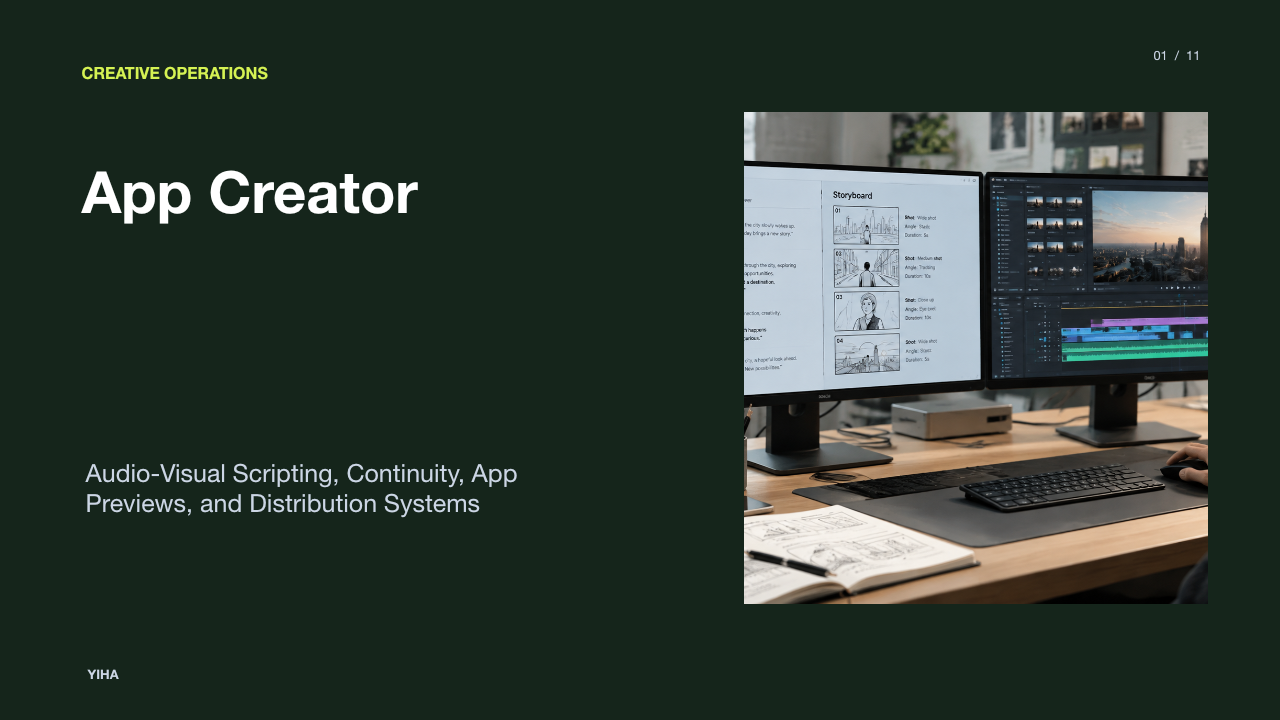
In StudioBinder's guide to explainer videos, two-column AV scripts are highlighted as an effective way to align visual actions with spoken lines and planned timings [1]. Delivery pacing strongly affects viewer comprehension. StudioBinder recommends a speaking rate of approximately 150 words per minute for a conversational feel, while 130 words per minute conveys formal authority [1]. Planning your script with modular sections helps prevent runtime creep. As StudioBinder notes, viewer attention falls sharply after two minutes in short product explainers, emphasizing the importance of locking scripts and storyboards before production begins to prevent costly revisions [1].
Slide Composition and Cognitive Load Management
Slide design for video demands different technical standards than slide decks prepared for live keynote ballrooms. Video viewers frequently watch content on smaller laptop screens or mobile devices, where low contrast, tiny fonts, and cluttered graphics quickly become illegible.
To keep viewers focused, designers must implement visual hierarchy and signaling principles. As highlighted by VEED's presentation maker documentation, presentations must ensure proper information hierarchy and visual balance rather than crowding slides with unformatted data [1]. Eliminating redundant on-screen paragraphs prevents the viewer from reading ahead while the speaker speaks. Slide elements should serve as visual anchors, such as labeled diagrams, callout boxes, or data charts. Additionally, tools like Camtasia allow creators to insert annotations and visual behaviors to spotlight critical screen areas dynamically, as described in TechSmith's presentation recording analysis [1]. When modifying slides for video, ensure generous white space and clean typography.
Audio Capture Engineering and Acoustic Environment
Poor visual quality is often tolerated by audiences, but distorted, echoey, or quiet audio causes rapid drop-off and fatigue. Capturing clean audio requires proper microphone selection, distance control, and acoustic treatment of the physical recording space.
Many presenters make the mistake of using built-in laptop microphones, which pick up internal fan noise, room echo, and mechanical keyboard clicks. In TechSmith's recording guide, specialists note that even a basic microphone built into wired headphones often delivers higher speech intelligibility than an internal laptop mic [1]. Cardioid dynamic or condenser USB microphones positioned 6 to 8 inches from the mouth provide much greater vocal presence. In addition to hardware, environmental management is critical. Hard surfaces such as bare walls and glass windows cause sound reflections. Soft furnishings, rugs, and foam panels help dampen flutter echo. For post-capture speech cleanup, transcription-based editors like TechSmith Audiate enable creators to edit spoken audio by adjusting text directly while eliminating verbal disfluencies [1].
Presenter Video Capture, Framing, and Eye Contact
Including a presenter webcam feed provides personal presence and increases viewer engagement. However, an improperly framed camera feed can distract viewers from the core slide material.
Standard slide recording tools now integrate video positioning directly onto the canvas. For example, Microsoft PowerPoint's slide show recording documentation outlines features such as Cameo, which allows speakers to insert a customizable camera feed directly onto specific slides [1]. Microsoft also provides teleprompter views in its recording window to help presenters read notes while looking straight into the lens, preserving direct eye contact [1]. Presenters should position their camera at eye level rather than looking downward. Lighting should illuminate the speaker's face evenly from the front and slightly to the side, avoiding strong backlighting from open windows that turns the presenter into a silhouette. Background blur or a clean physical set further minimizes visual distraction [1].
Production Software and Recording Architectures
Selecting the right recording and production software depends on technical complexity, time constraints, and team collaboration needs. Software options generally fall into three main architectures: integrated slide recorders, dedicated screen recording suites, and automated synthetic editors.
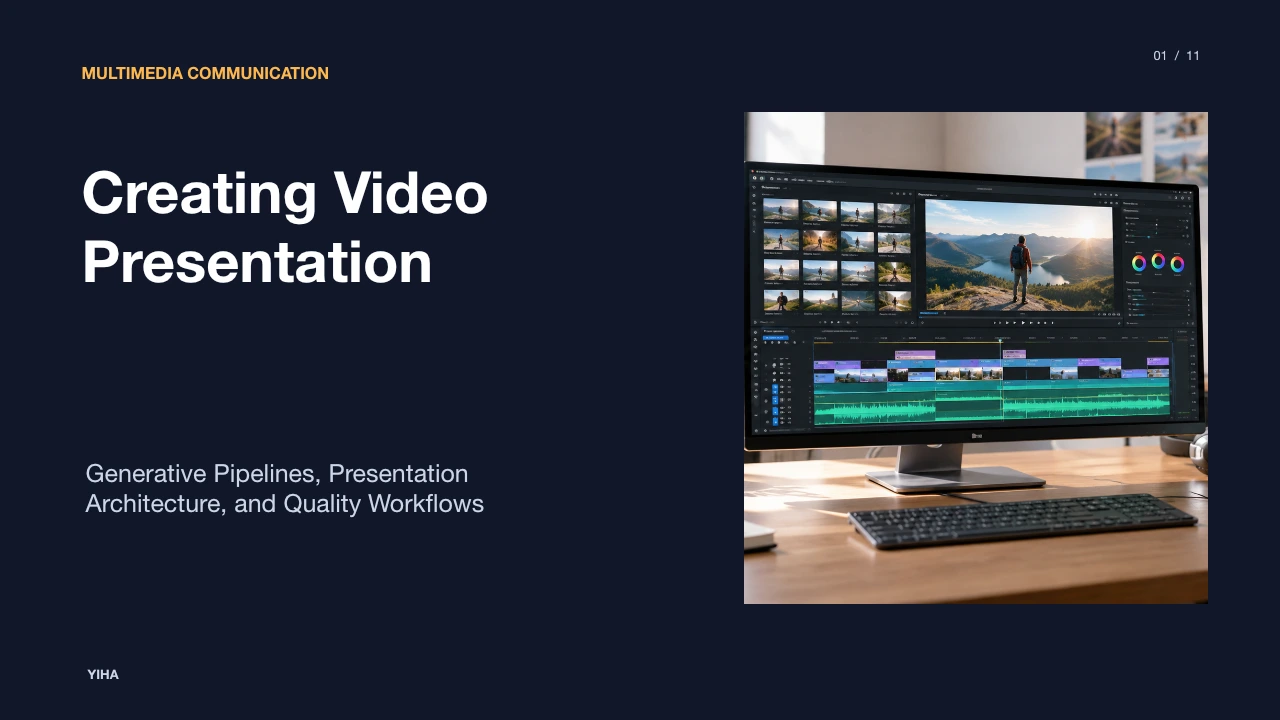
As detailed in The TechSmith Blog's guide to recording presentations, dedicated screen capture suites like Camtasia streamline this process by letting creators record slides and voiceover directly within presentation software or import existing slide decks into an editing timeline [1]. This architecture gives creators precise control over slide timings, visual behaviors, and annotations [1]. For lean production teams, screen recording tools like Loom and Camtasia offer a practical middle ground when paired with motion graphics, as noted in StudioBinder's production guide [1]. Alternatively, automated synthetic video platforms like Synthesia enable teams to generate narrated presentations from text scripts using digital avatars and automated translations, as evaluated in Synthesia's training video software review [1]. Each architecture involves trade-offs between manual editing flexibility and production speed.
Editing, Accessibility, and Closed Captioning
Once raw video and audio are captured, the editing phase refines the presentation by removing long pauses, correcting mistakes, and ensuring full accessibility. Precise trimming keeps the presentation moving and respects the viewer's time.
Universal accessibility requires captioning and predictable media navigation. The W3C's Web Content Accessibility Guidelines (WCAG) 2.1 specify standards for providing synchronized captions and media alternatives for non-text content, benefiting individuals who are deaf or hard of hearing as well as viewers in sound-sensitive environments [1]. Captions are commonly structured using standardized formats like WebVTT. As documented by the Mozilla Developer Network's WebVTT API guide, WebVTT files provide time-aligned text cues that sync with video timelines and support chapter cues for content navigation [1]. Furthermore, platforms reviewed in Vyond's training video software guide demonstrate that automatic AI transcription can generate searchable transcripts and interactive elements like knowledge checks, expanding presentation utility across learning environments [1].
Video Compression, Distribution, and Retention Analysis
Exporting and publishing video presentations requires balancing high visual clarity with reasonable file sizes and broad device compatibility. Delivering uncompressed media leads to buffering and storage bloat across learning management systems (LMS) and web hosting portals.
Standard publishing specifications favor the MP4 container format. According to Vimeo's video compression guidelines, the H.264 video codec offers a reliable balance between visual quality and file compression for standard web streaming [1]. Vimeo recommends selecting High Profile H.264 with progressive scanning and constant frame rates matching the recorded capture, accompanied by stereo AAC audio [1]. Similar upload guidelines are detailed in YouTube's upload encoding specifications, which advocate standard 16:9 aspect ratios, native frame rates, and variable bitrates for smooth rendering [1].
Following distribution, tracking retention analytics provides objective feedback on presentation effectiveness. As noted in Ziflow's video production analysis, monitoring engagement rates and drop-off points allows teams to spot confusing slides or slow segments, informing structural improvements for future presentations [1].
Research sources
- Create a Video From PowerPoint & Recording | The TechSmith Blog · www.techsmith.com
- Video production workflow: The 4 stages, steps to success, and best practices · www.ziflow.com
- AI Presentation Maker - Create Video Presentations - VEED · www.veed.io
- Free AI Presentation Maker - Create AI Video Presentations · www.synthesia.io
- Product Explainer Video: Types, Examples & Best Practices · www.studiobinder.com
- The 7 Best Training Video Software of 2026 (Tried & Tested) · www.synthesia.io
- How to Storyboard a Video The Right Way · www.revid.ai
- Record a slide show with narration and slide timings | Microsoft Support · support.microsoft.com
- Web Content Accessibility Guidelines (WCAG) 2.1 · www.w3.org
- WebVTT API - Web APIs | MDN · developer.mozilla.org
- 7 Best Training Video Software in 2026 | Vyond · www.vyond.com
- YouTube recommended upload encoding settings - YouTube Help · support.google.com
- Video and audio compression guidelines – Vimeo Help Center · help.vimeo.com